Wan 3.0 now in Public Beta
Official launchAlibaba CloudWan 3.0
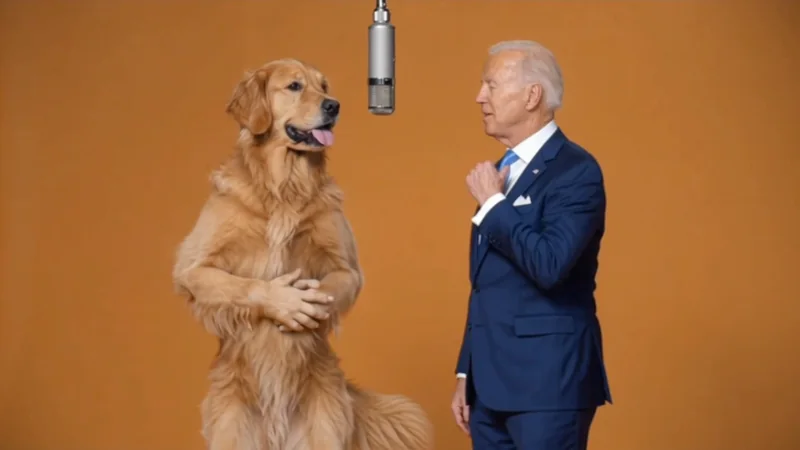
Alibaba Cloud introduces Wan 3.0 with video examples.
Open original videoTurn a written prompt or an image into a video up to 30 seconds long, with sound generated alongside the picture. Choose 480p, 720p, or 1080p on EaseGen.
Wan 3.0 is an AI video model from Alibaba. It creates video from a written description or a starting image, and can generate dialogue, sound effects, and background sound.
On EaseGen, Wan 3.0 supports longer clips than Wan 2.7 and adds video and audio references. In Image to Video mode, you can upload these alongside images to show the motion or sound you want.
| Setting | Available on EaseGen |
|---|---|
| Input modes | Text to video and image to video |
| Video length | 2 to 30 seconds |
| Resolution | 480p, 720p, or 1080p |
| Reference images | Up to 10 images in Image to Video mode |
| Reference videos | Up to 5 clips, 1 to 15 seconds each; 15 seconds total |
| Reference audio | Up to 5 clips, 1 to 15 seconds each; 15 seconds total |
| Using reference videos | Reference videos and the generated video can total at most 30 seconds. For example, 10 seconds of references leaves up to 20 seconds for your video. |
| Sound | Generated with the video; describe the sounds you want in your prompt |
Describe what happens and how the camera moves. You can start without an image, whether you want a street scene, a product shot, or an animation.
Upload a photo or illustration, then describe the movement to add. The image gives the video its starting composition.
Upload an opening image and an optional closing image to guide a transition. This is a separate option from adding video and audio references.
In Image to Video mode, add images to show the subject, short videos to show movement, or audio clips to guide the sound.
Use up to 30 seconds for actions that need time to unfold, such as a product reveal or a walk through a room. Uploaded reference videos reduce the available video length.
Include dialogue, footsteps, traffic, or other sounds in your prompt. Wan 3.0 can generate them with the video.
Turn a product photo into a slow camera move around a mug, bottle, or package. Describe the angle and lighting you want.
Animate a portrait with a head turn, a small gesture, or moving fabric. Start with the photo you want to use and describe one action.
Show a character crossing a rainy street or a paper boat drifting down a stream. Add footsteps, rain, or water sounds to the prompt.
Watch Alibaba Cloud's launch video and independent tests. These videos were published by their credited creators, rather than generated on EaseGen.
Alibaba Cloud introduces Wan 3.0 with video examples.
Open original videoWonderClip tests a 30-second scene made from one prompt.
Open original videoAtlas Cloud compares Wan 3.0 and Seedance 2.5 examples.
Open original videoChoose Text to Video to start with a description. Choose Image to Video to upload a starting image or use reference files.
Write what the subject does, how the camera moves, and what you want to hear. Start with one main action, such as a person turning toward a window.
In Image to Video, add the images, videos, or audio you want to use as references. To set an opening and closing image instead, turn on First/Last Frames.
Set the video length and resolution, then check the credits shown on Generate Video. Sign in to generate. You can watch and download the result in My Creations.
Try a prompt below, or replace its subject and action with your own.
A matte black travel mug on a stone pedestal in a daylight studio. Move the camera slowly halfway around the mug from left to right. Keep the mug centered and its shape unchanged. A narrow reflection moves across the metal lid. Add quiet room sound and a soft tap at the end.
Text to Video: a slow camera move around a product.
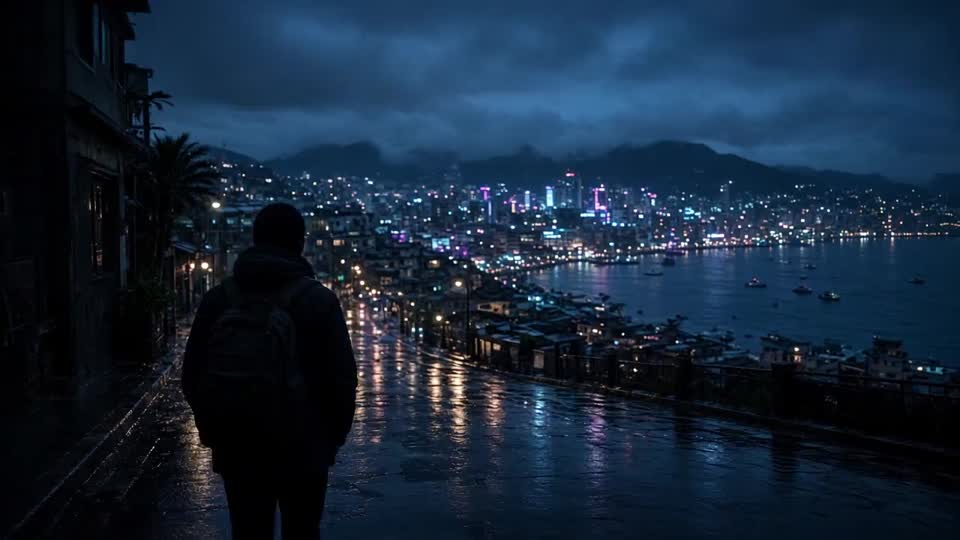
An evening street after rain. A person in a yellow raincoat walks past lit shop windows. Follow beside them at walking speed, keeping their face in profile. Shop lights reflect in the puddles. Add footsteps, distant traffic, and light rain, with no dialogue.
Text to Video: a walking scene with rain and street sounds.
Use the uploaded portrait as the first frame. The person slowly turns toward a window as the camera moves closer. A light breeze moves the jacket fabric, and warm morning light falls on the face. Keep the person's face, hairstyle, and jacket unchanged.
Image to Video: upload a portrait before using this prompt.
A small red paper boat floats down a stream in a hand-painted forest. Start close to the boat, then raise the camera to reveal fireflies and a wooden footbridge. The water moves gently. Add soft bells and flowing water sounds. Keep the scene in one shot.
Text to Video: an animated scene that gradually reveals its setting.
Settings available on EaseGen. For Wan 3.0, uploaded reference videos and the generated video must total 30 seconds or less.
| Feature | Wan 2.6 | Wan 2.7 | Wan 3.0 |
|---|---|---|---|
| Clip length | 5 / 10 / 15 s | 2–15 s | 2–30 s |
| Resolution | 720p / 1080p | 720p / 1080p | 480p / 720p / 1080p |
| Start + end frames | |||
| Reference videos | 5 videos / 15 s total | ||
| Reference audio | Up to 5 audio clips | ||
| Choose for | Animate one starting image | Connect an opening and closing image | Longer scenes with video and audio references |
Settings available on EaseGen. Reference limits apply to Image to Video mode.
| Feature | Seedance 2.5 | Kling 3.0 | Wan 3.0 |
|---|---|---|---|
| Clip length | 4–30 s | 3–15 s | 2–30 s |
| Resolution | 480p / 720p | 720p / 1080p / 4K | 480p / 720p / 1080p |
| Reference images | Up to 30 images | Up to 4 images | Up to 10 images |
| Reference videos | 10 videos / 30 s total | 5 videos / 15 s total | |
| Reference audio | Up to 10 audio clips | Up to 5 audio clips | |
| Generated audio | 720p / 1080p only | ||
| Choose for | Use more reference files | Make short 4K clips | Use video and audio references at 1080p |
Wan 3.0 on EaseGen requires an account and credits to generate a video. The cost depends on resolution and video length; uploaded reference video time is also charged. Check the total credits shown on Generate Video before submitting.
On EaseGen, use Wan 3.0 at 480p to test a prompt with fewer credits, 720p for a higher-resolution preview, or 1080p for the final video. Higher resolutions cost more credits for the same length.