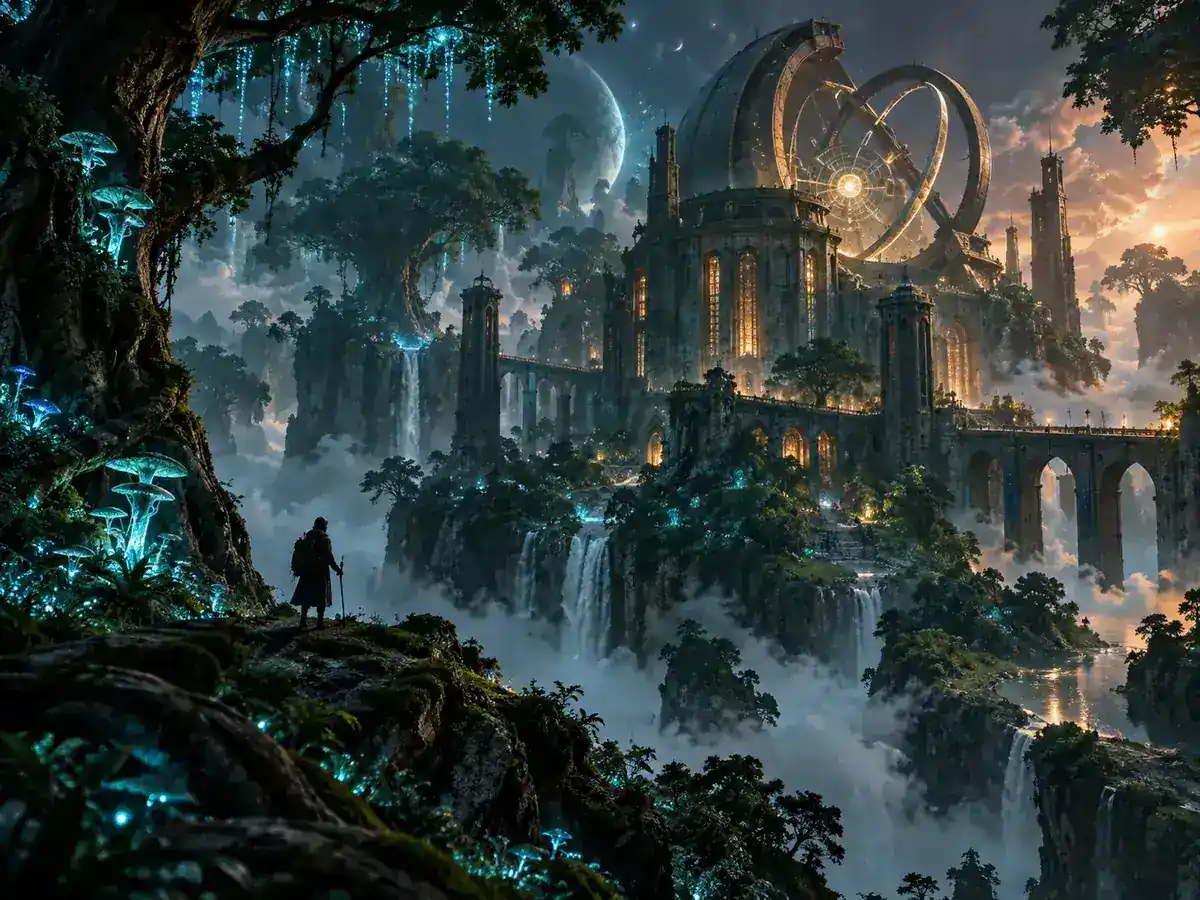
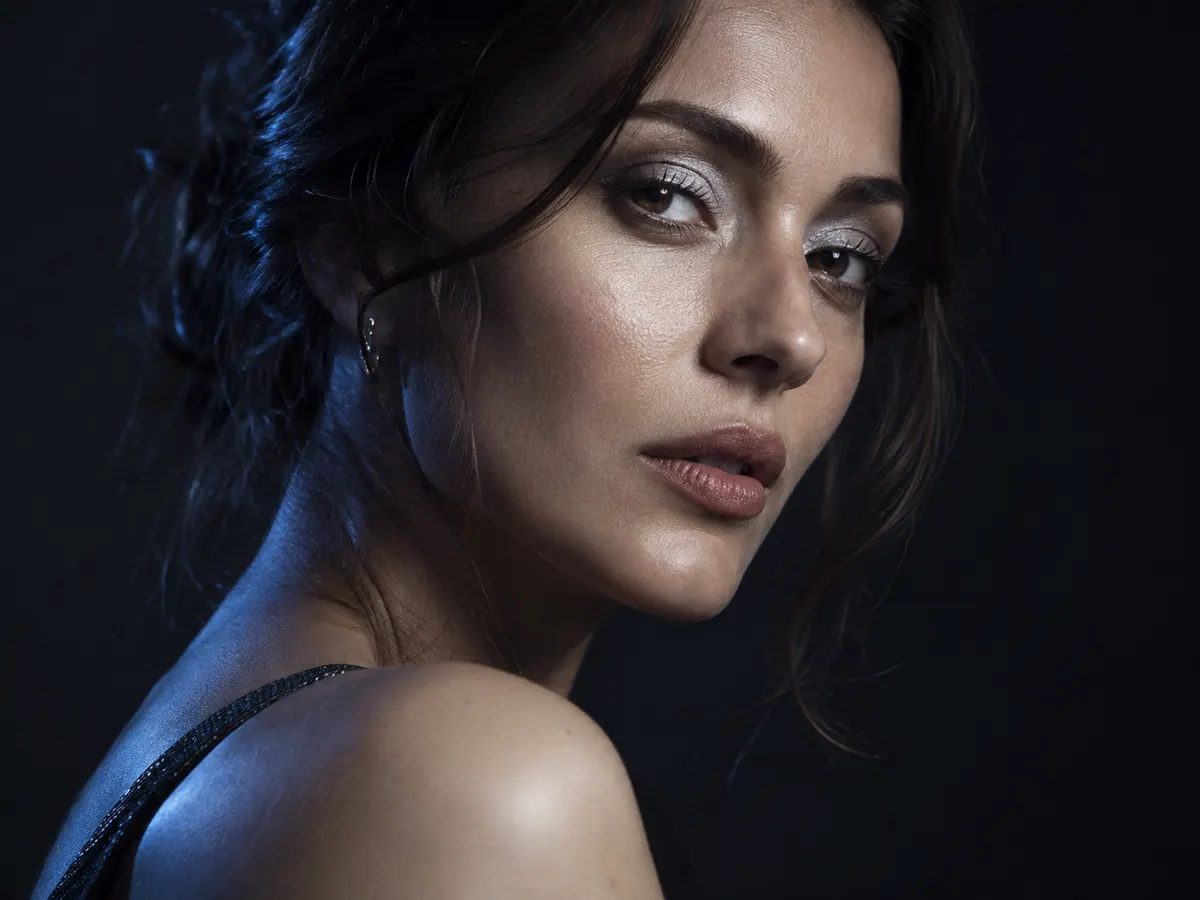
Image to Video
Image InputCreate an AI video from an image. Add a product photo or character reference, then describe the movement you want.
Preview
Turn a photo or a sentence into video — image to video, text to video, and 30+ models in one workspace.
Eligible new accounts may receive 20 sign-up credits, subject to availability — enough for 1 five-second video with the starter settings. · A 5-second 480p video with Grok 1.5 Video costs 20 credits.
Animate a photo, create a scene from a prompt, or plan a story across multiple shots.
Create an AI video from an image. Add a product photo or character reference, then describe the movement you want.
Describe the subject, action, setting, and camera movement to create a new scene from words.
Make a short product reveal or campaign scene. Review product details and any text before using the result in an ad.
Develop an idea or script into a storyboard, visual references, and video clips for each scene.
Add a photo for image to video, or describe a scene for text to video. Continue to the video generator with your inputs.
Choose a model and review its length, resolution, aspect ratio, and credit cost. Sign in before generating.
Generate your video, preview the result, and download it. Adjust the prompt or settings if the movement needs another try.
Choose a video model for motion or an image model to prepare your starting visuals. Availability, settings, and credit costs vary by model.

Create video clips from text, images, or supported reference media. Membership required.
Create clips from text or images with model-specific motion and audio settings.

Generate video from text or reference images, with supported frame and audio controls.

Create short video clips from text or images, with sound on supported settings.
Create and edit reference images for products, characters, and scenes.

Prepare new images or edit existing visuals before animating them.
Create product images, campaign visuals, and social graphics, or prepare a reference image for your next video.
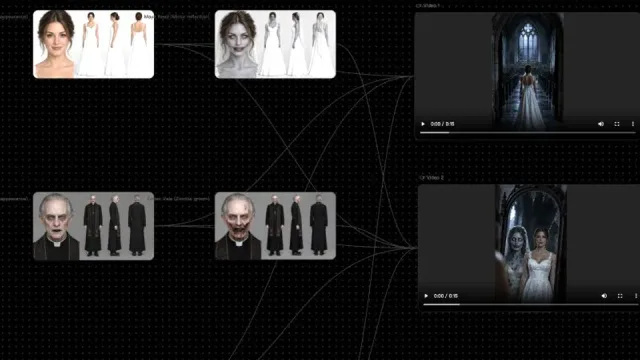
Bring images and videos together on a canvas for creators who want to organize and develop visual ideas.
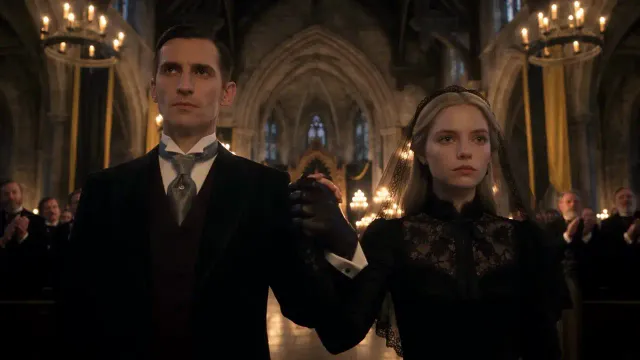
Turn an idea or script into a storyboard, reference images, and video clips for multi-scene stories.
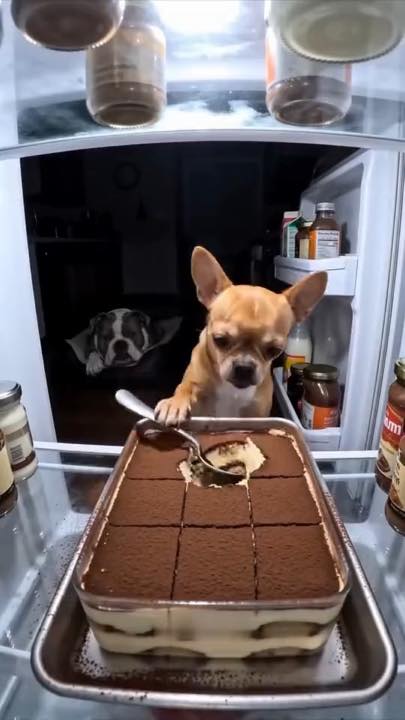
Put your pet or character in the Chihuahua's place in the tiramisu fridge video with one photo.
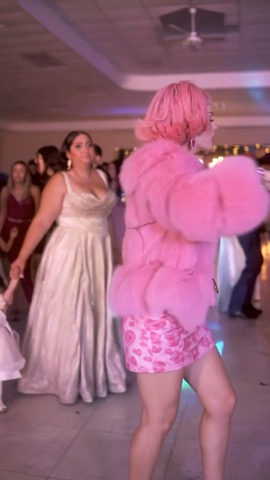
Put one person into the Dime Dime Baby party dance with a built-in video reference.
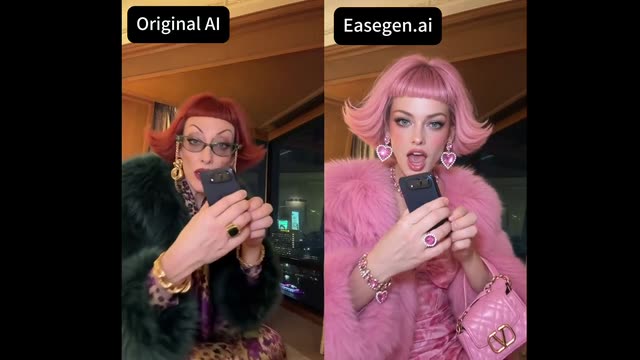
Make a 15-second iPhone Kupi dance video from one photo with a built-in movement reference.
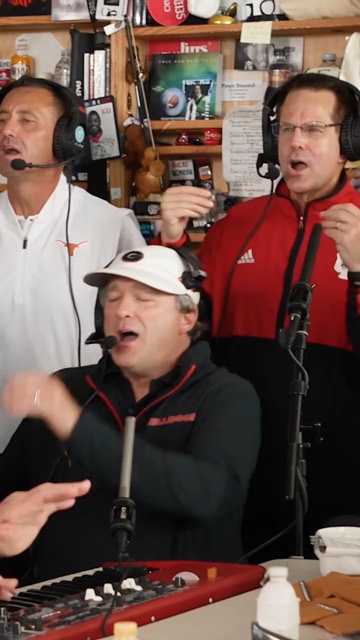
Put five people into a desk-concert performance with five photos.
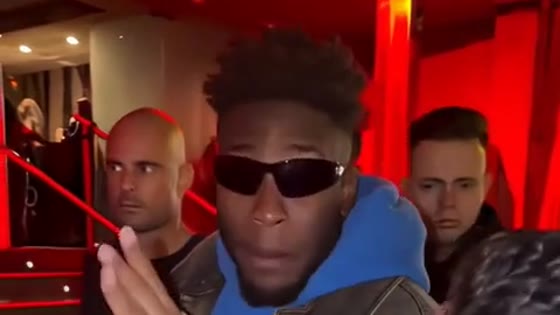
Make a freestyle performance clip for social posts with one photo and a built-in reference.
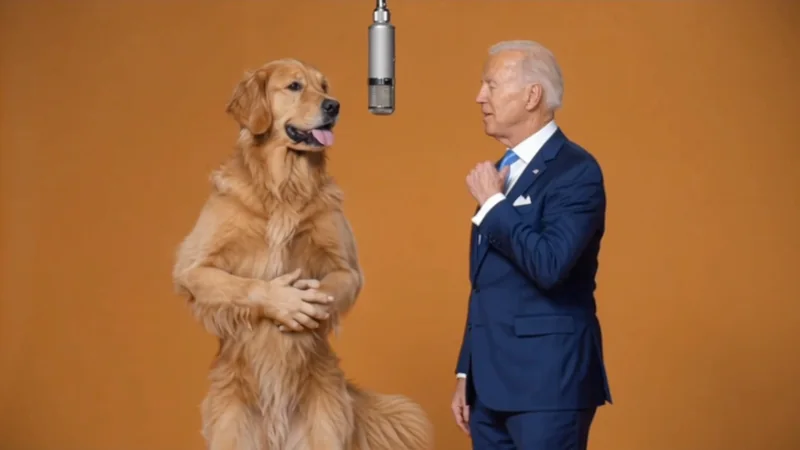
Make a two-person performance clip for social posts with the Hotel Lobby AI template.
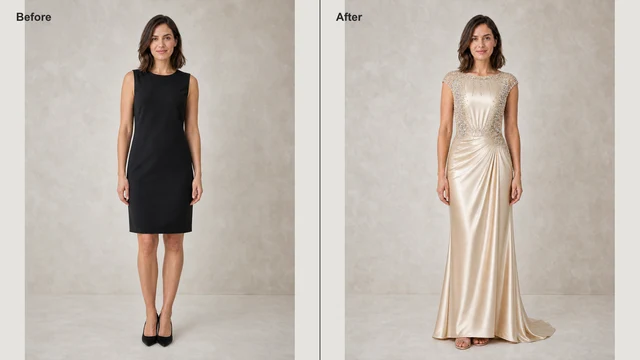 Free to Try
Preview outfits for fashion concepts or personal styling with a photo, clothing reference, or description.
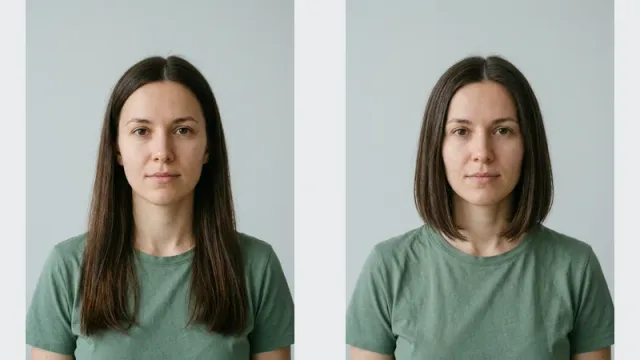 Free to Try
Compare haircut ideas on your own photo before choosing a new style.
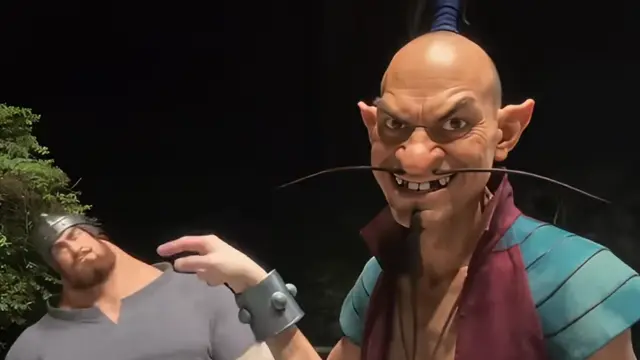
Make a two-person hop hop hop clip from two photos. The dance and sound are built in.
AI video generators turn a text description or a reference image into a video clip. EaseGen lets you choose a model, set the output options, and preview and download the result.
Eligible new accounts may receive 20 sign-up credits, enough for one 5-second video with Grok 1.5 Video at 480p. No subscription is required for those settings. Rewards are subject to availability; other settings may cost more, and additional credits are needed after the allowance is spent.
Yes. On EaseGen, upload a photo you have permission to use to a compatible video model, describe the movement you want, then review the generated clip before downloading it.
Video lengths on EaseGen depend on the selected model. The starter setting creates a 5-second clip; AI Story lets you work with separate clips across multiple scenes.
EaseGen shows the resolution and aspect-ratio options for the selected model. The starter setting uses 480p; some reference-based modes follow the source media's aspect ratio. Review the cost before generating.
On EaseGen, you can choose from video model families including Seedance, Wan, Kling, and Veo. Image models are also available for creating starting visuals. Check the model selector for current inputs, settings, and costs.
No. EaseGen does not add a watermark to downloaded videos. Existing marks in reference media or text generated within a scene may still appear, so review the result before publishing.
Commercial use of videos made on EaseGen is subject to the Terms of Service, applicable model terms, and third-party rights. You need the rights and permissions required for your inputs and intended use; EaseGen does not guarantee that every output is unique or free of third-party rights.
Start with a photo or a few words. Choose your settings and create your next video.