Evening gowns
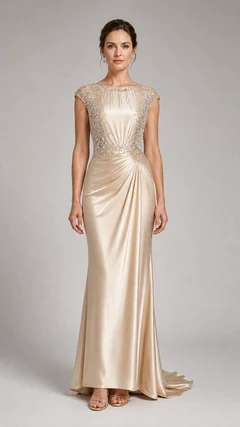
Start with silk, crystal, pearl, or embroidered gowns for a gala, wedding guest look, or formal portrait.
Upload a person photo, choose a clothing style or add your own reference, and create a new outfit image. You can also describe the look in Custom.No sign up needed for one free image if your network and browser have not used EaseGen's shared free image allowance. After that, sign in and use credits.
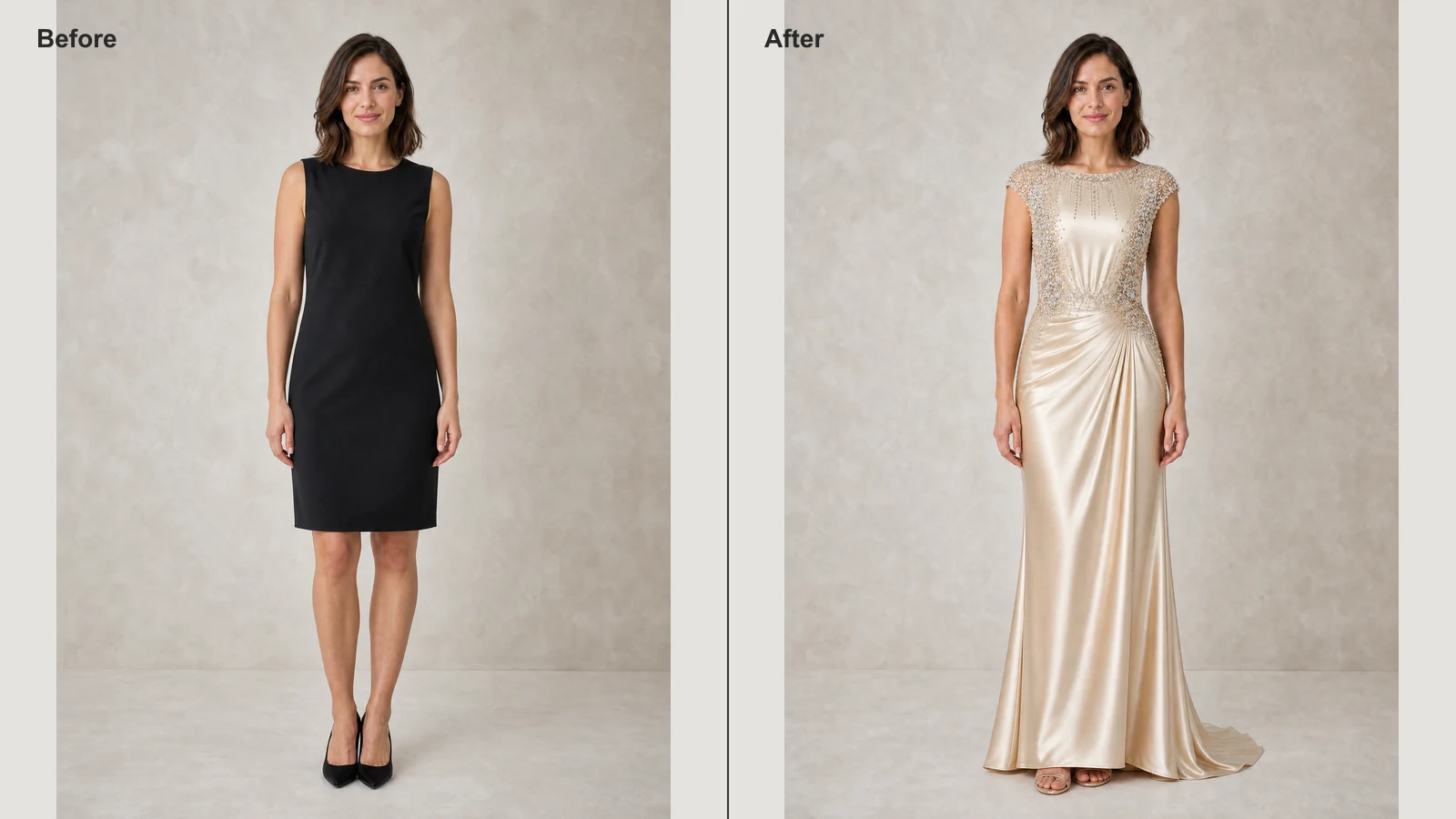
Image 1: upload the person photo you want to edit.
Start with one free image. No sign up required.
EaseGen's AI clothes changer replaces the outfit in a person photo and returns a new image. You provide the person and an outfit direction: choose a clothing style, upload a reference image, or describe the clothes you want. The tool asks the image model to keep the person's face, pose, lighting, and surroundings consistent while changing the clothing.
Use the result to explore a look before a formal event, plan a resort outfit, or develop a fashion image. It is a visual preview, not a measurement of how a real garment will fit. Check the face, hands, garment details, and background before using or sharing the image.
The clothing gallery contains 16 women's and 16 men's reference looks. These images show outfits you can select; they are not generated results from your photo.
Start with silk, crystal, pearl, or embroidered gowns for a gala, wedding guest look, or formal portrait.
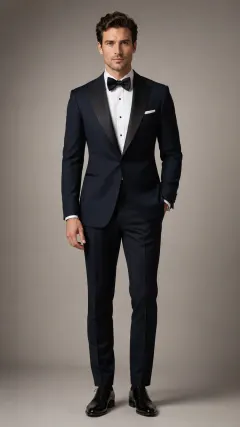
Try a tuxedo, dinner jacket, or sharp suit when the image needs a polished, professional silhouette.
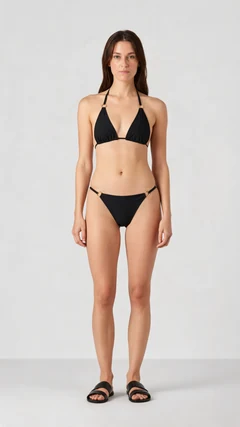
Explore statement swimwear and coordinated resort looks for an adult vacation or poolside concept.
Use a reference when the garment's shape and details matter. Use words when you want to explore an idea without a clothing photo.
Open Women or Men and select a clothing image. The selected look becomes the outfit reference for your person photo.
Open Custom, choose Reference Outfit, and add a clear image of the clothing you want to use.
Open Custom and choose Describe Outfit. Include the garment, color, fabric, coverage, and occasion in a short description.
This before-and-after image illustrates the intended change from a simple black dress to a champagne crystal gown. It is a prepared example, not a result made with the tool above. Your image will vary with your photo and outfit choice.
Step 1
Choose a clear photo of one adult person. A full-body or half-body view with the clothing area visible gives the model more information to work with.
Step 2
Pick a style in Women or Men, or use Custom to upload a clothing image or describe the look. For a reference photo, show the garment clearly and avoid heavy obstruction.
Step 3
Check the selected clothing and press Generate. The tool sends the person photo and your outfit choice to create a new image.
Step 4
Inspect the face, hands, clothing coverage, texture, and background. Download a result you like, or adjust the reference or description and try again.
A clear subject and visible clothing make it easier to judge the edit. These tips improve the input, but they do not guarantee exact garment or fit reproduction.
Use a well-lit photo with the face and the clothing area visible. Avoid another person crossing the body or hands covering the garment.
For a clothing reference, use an image that shows the desired cut, color, and important details. On-model outfit photos work well for showing a complete look.
Review straps, hemlines, buttons, prints, and skin around the garment. Change the reference or wording when the result drifts from your intent.
Yes. You can generate one image without signing in if your network and browser have not used EaseGen's shared free image allowance. The current clothes changer settings qualify. Free results are not saved to an account, so download yours when it is ready.
After that shared free image is used, sign in to continue. Each additional outfit image currently costs 17 credits. Check the displayed cost before generating; pricing may change.
View PricingYes. EaseGen's AI Clothes Changer lets you generate one image for free with no sign up if your network and browser have not used EaseGen's shared free image allowance. This one-time allowance is shared across eligible image tools. After it is used, sign in and use credits to continue. Download your free result when it is ready, as it is not saved to account history.
Yes. In EaseGen's AI Clothes Changer, open Custom, choose Reference Outfit, and upload a clear image of the clothing. The tool uses that image alongside your person photo as a visual guide; small details may still change.
Yes. EaseGen's AI Clothes Changer has 16 men's reference looks, including tuxedos, formal suits, and resort outfits. You can also upload your own clothing image or describe another look in Custom.
Yes. EaseGen's AI Clothes Changer includes adult resort swimwear references in the Women and Men galleries. Choose one with the coverage and styling you want, then check the generated result carefully.
No. EaseGen's AI Clothes Changer creates an image preview, not a sizing or physical-fit simulation. Fabric, coverage, color, and body details can differ from the reference, so do not rely on the result to choose a size or verify a product.
Turn your ideas into images and videos in one creative workspace.