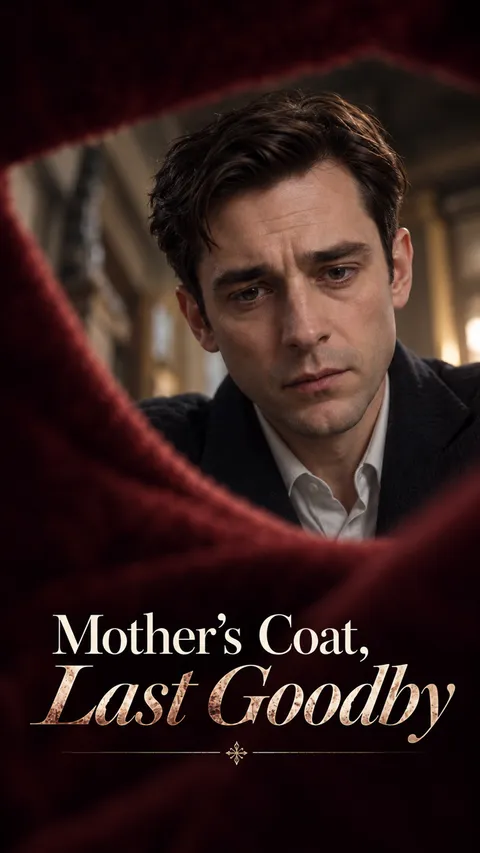
Generate a storyboard to start editing shots.
Confirm Your Storyboard First.
Generate a storyboard to start editing shots.
Turn an idea or script into a scene-by-scene video plan. Sign in to develop your script and storyboard for free.
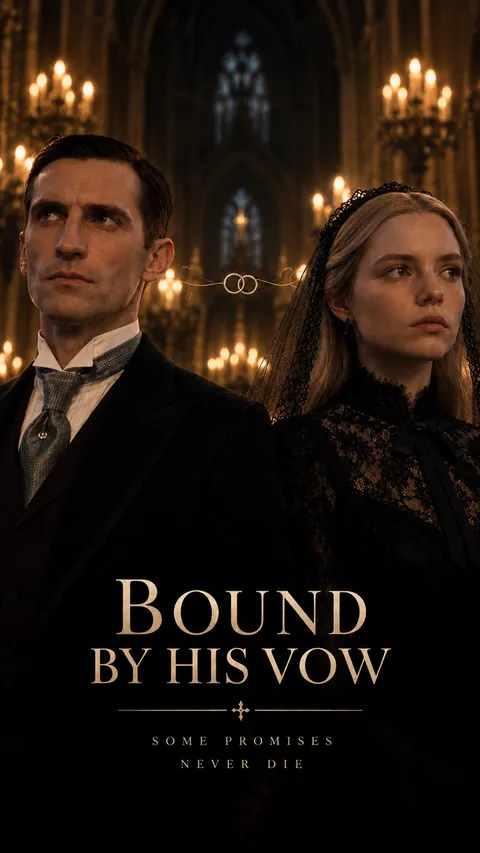
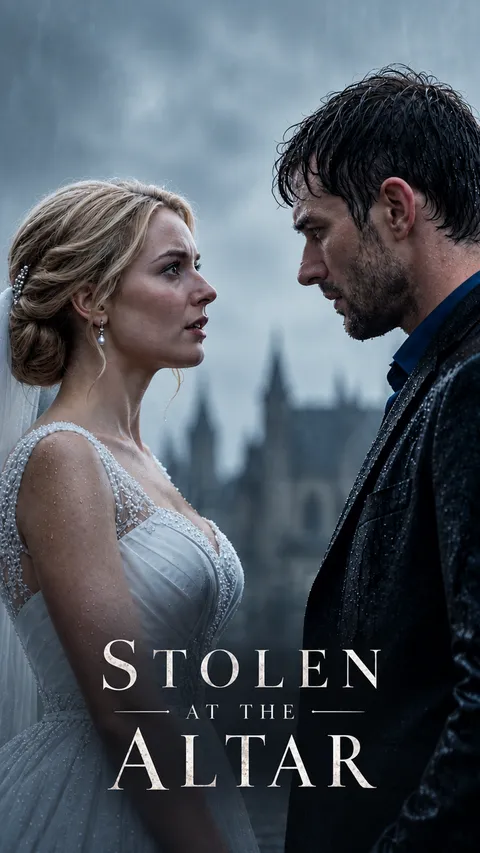
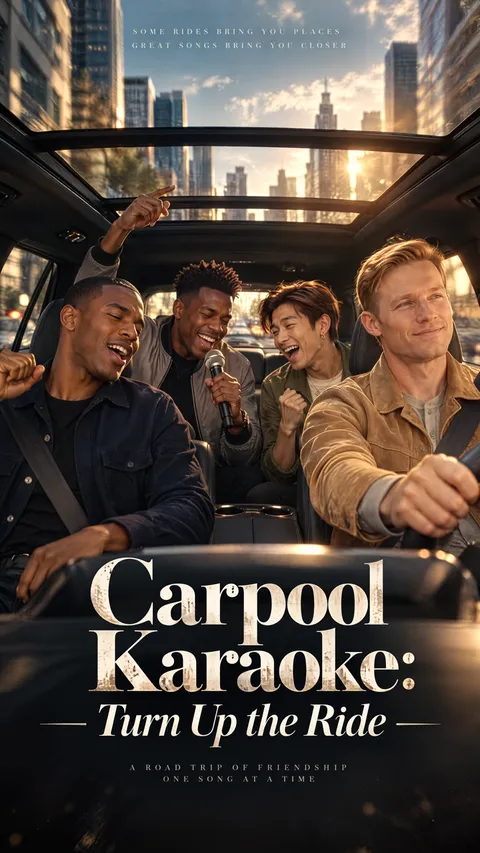
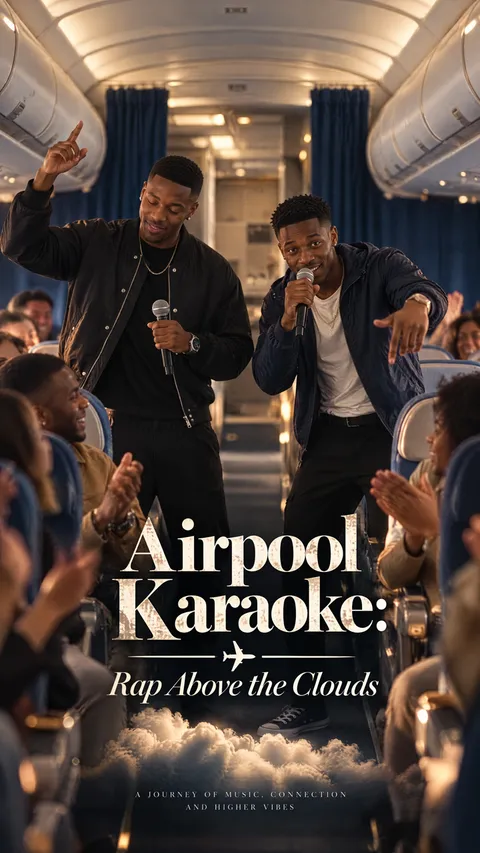
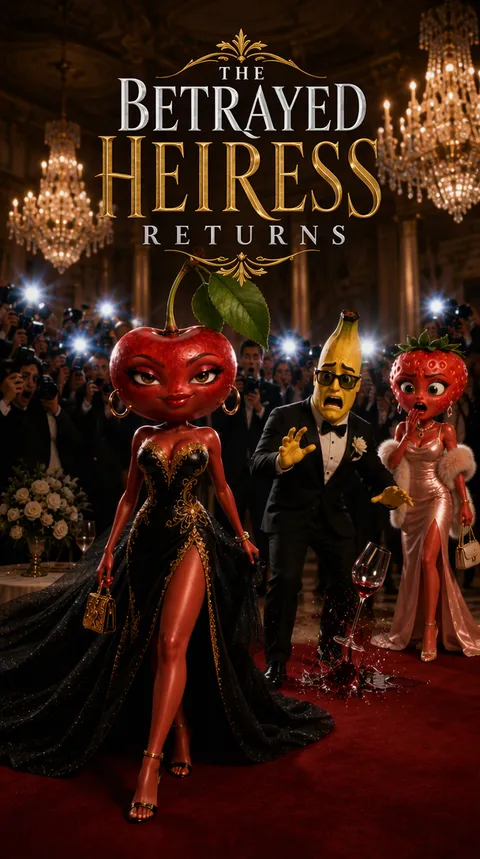
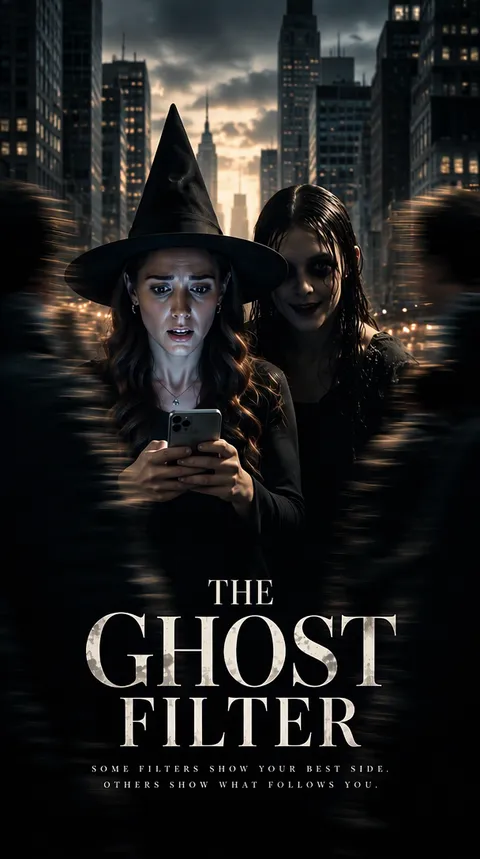
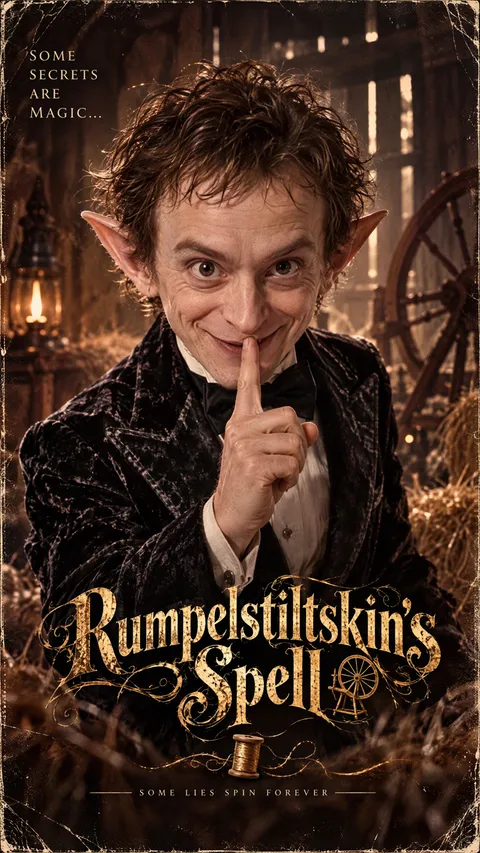
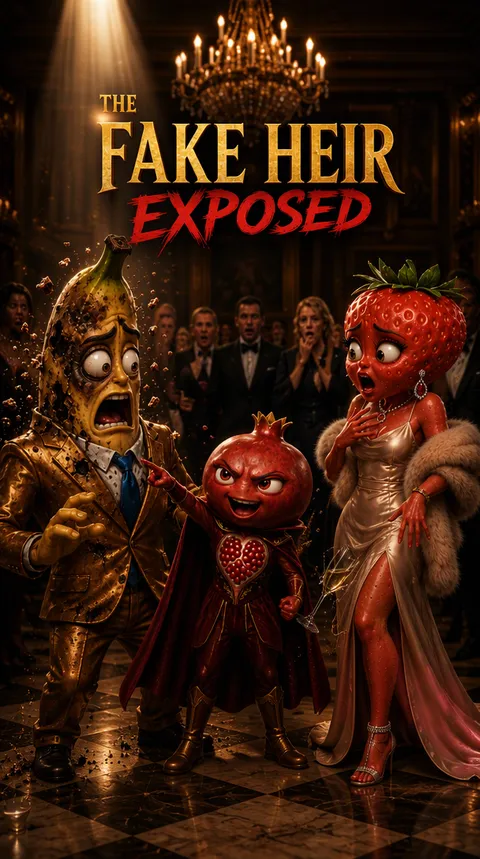
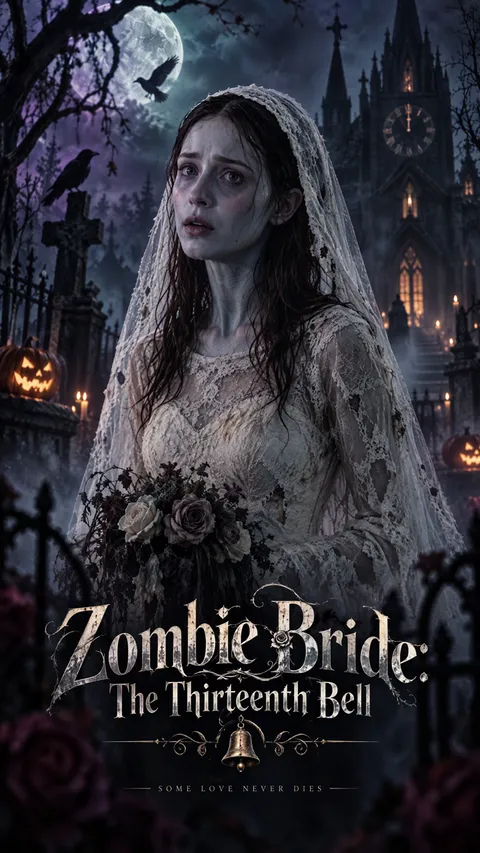
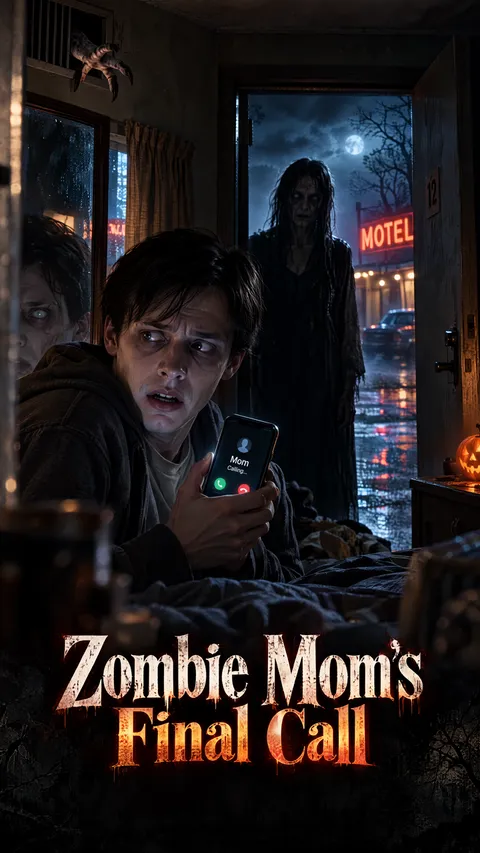
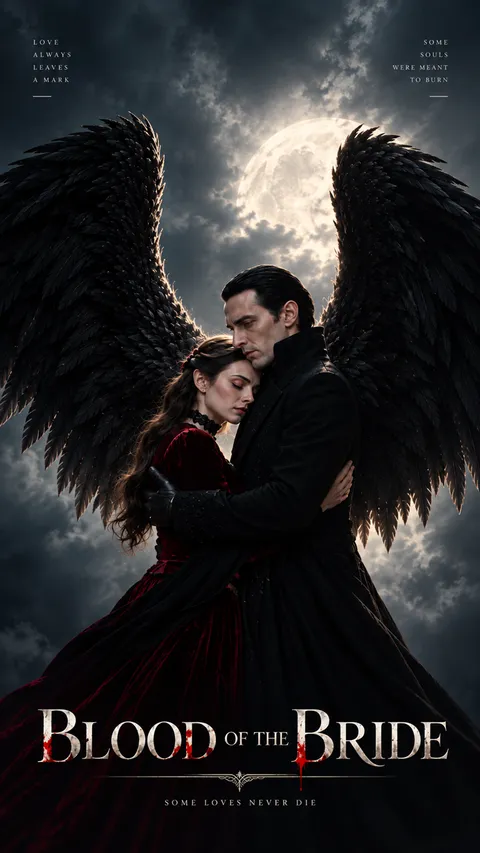
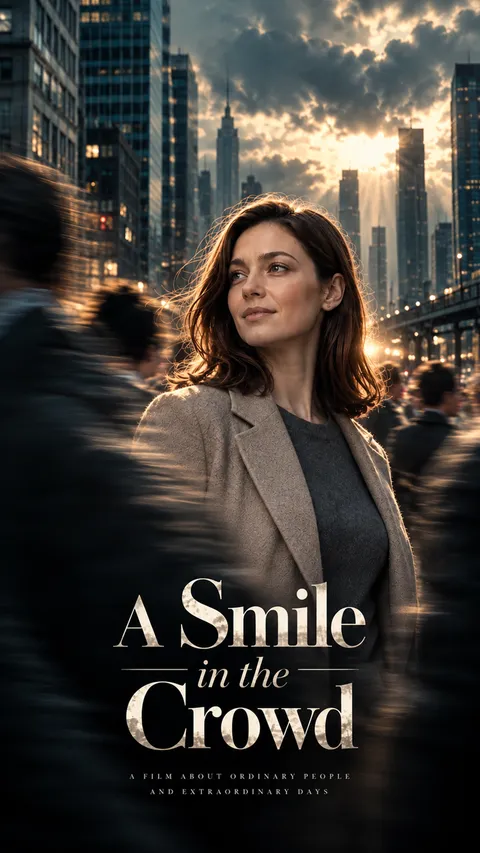
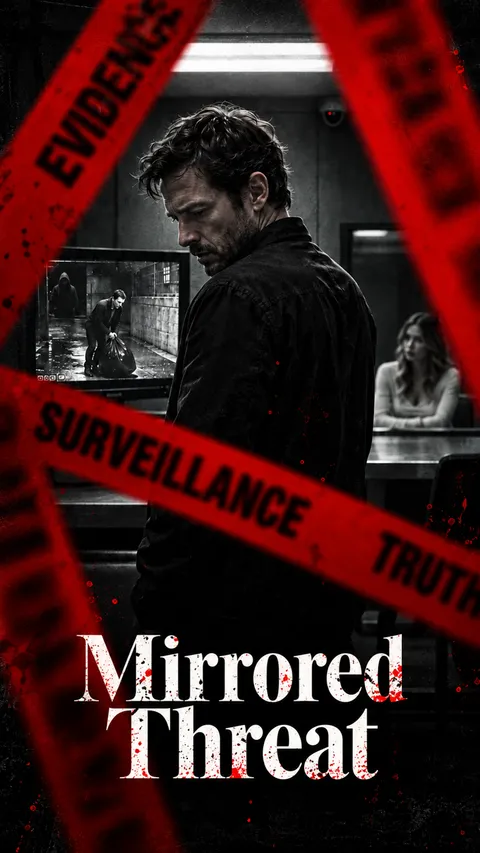
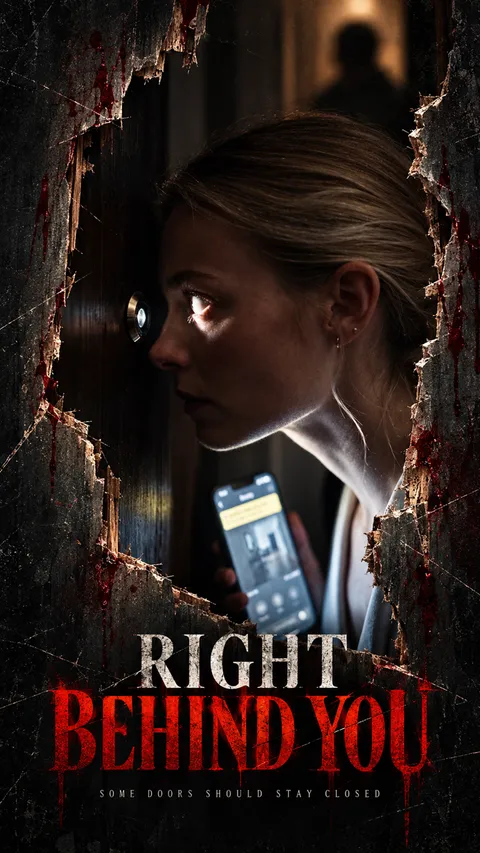
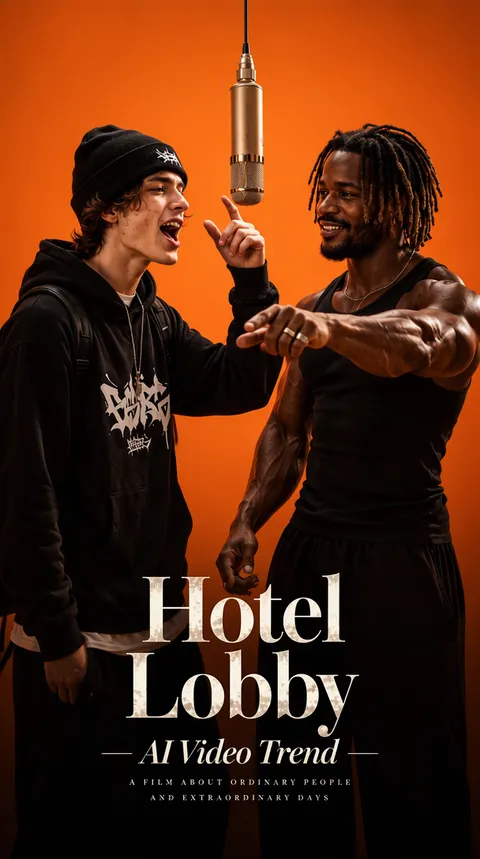
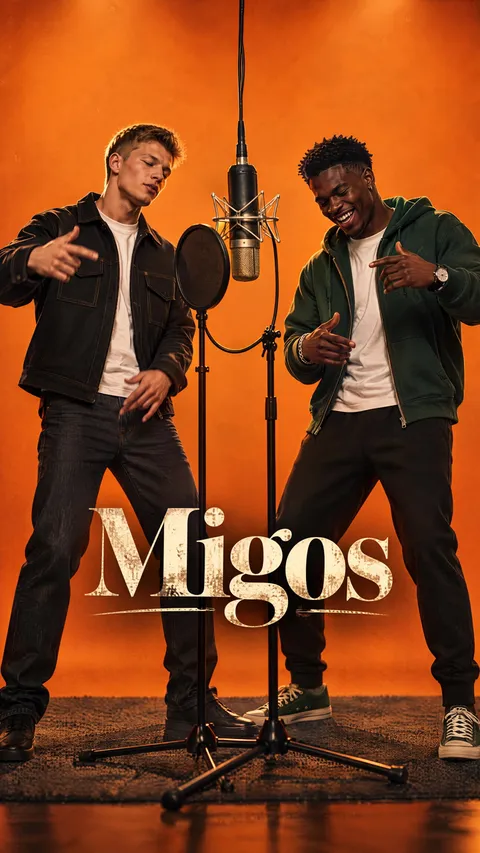
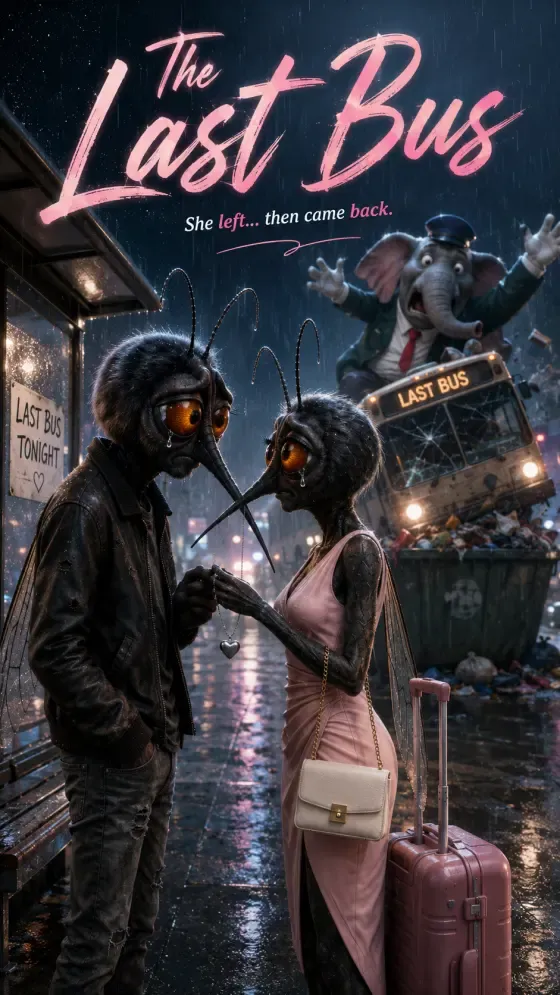
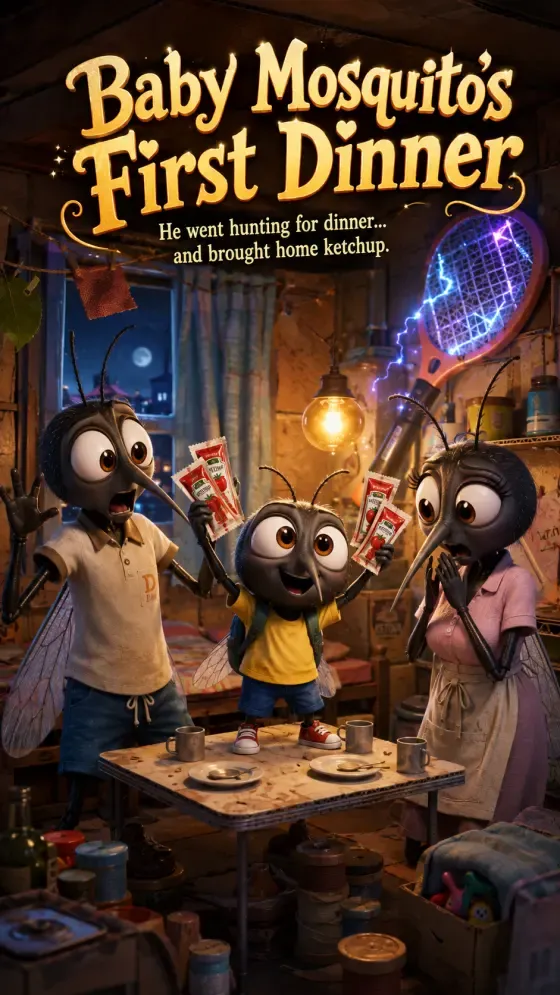
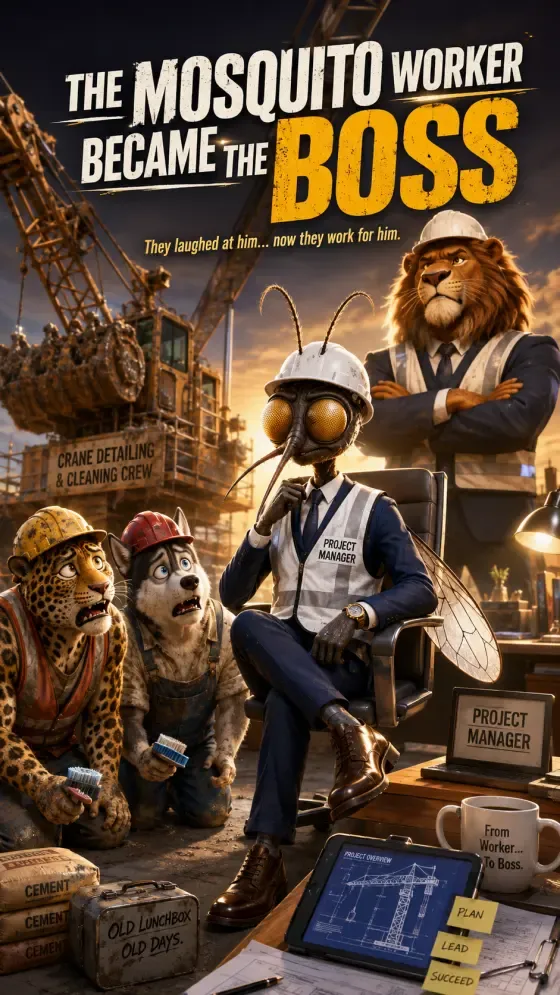
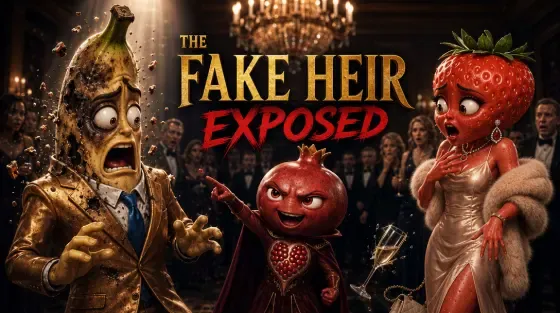
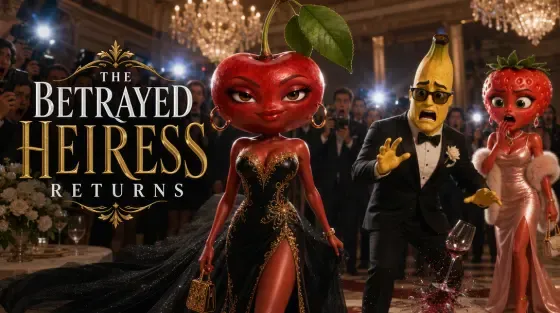

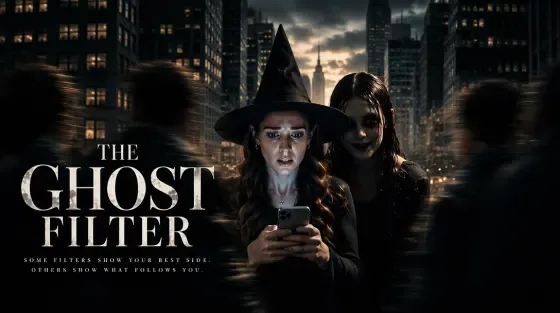
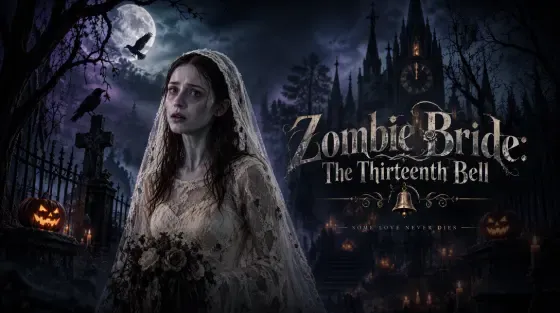
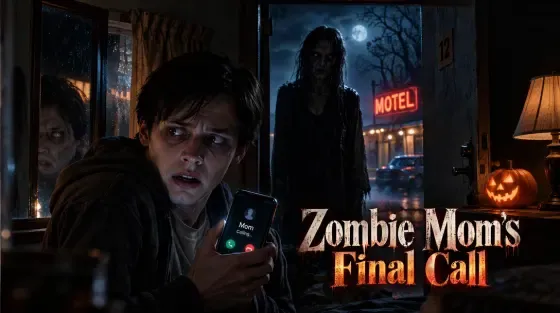
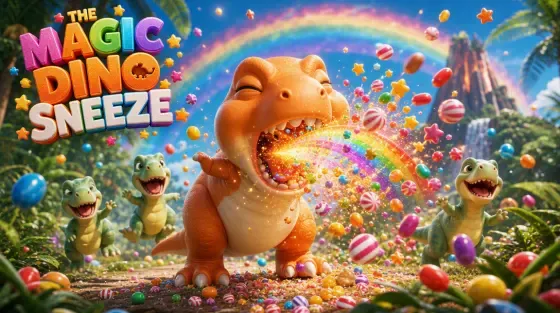

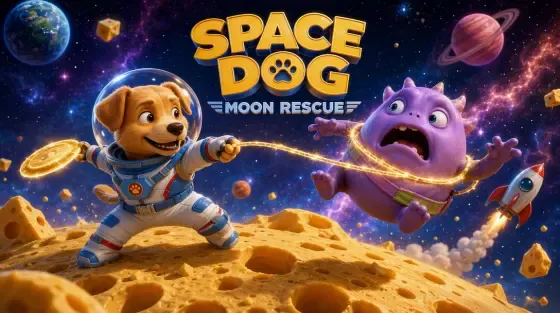
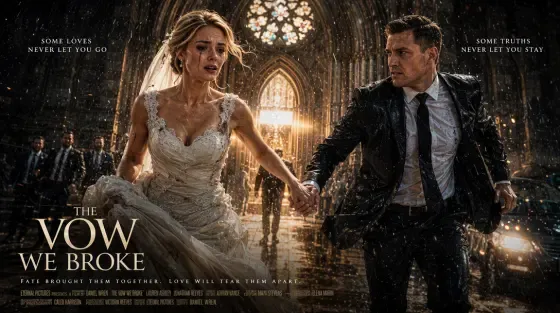
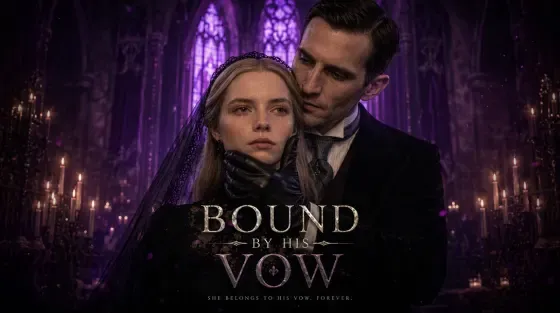
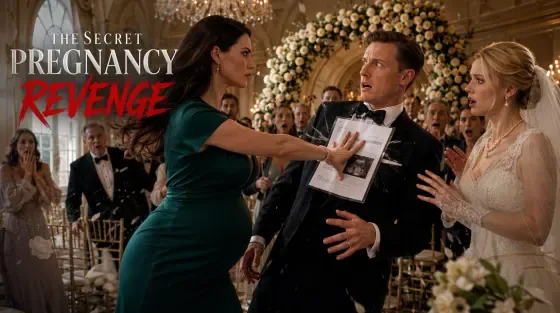
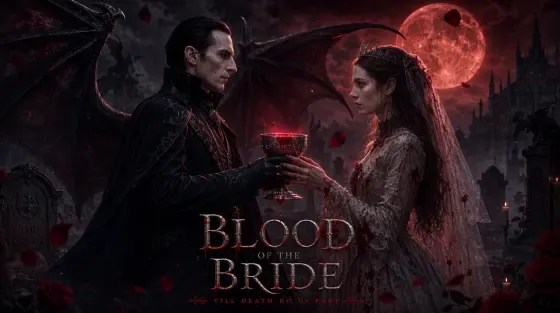
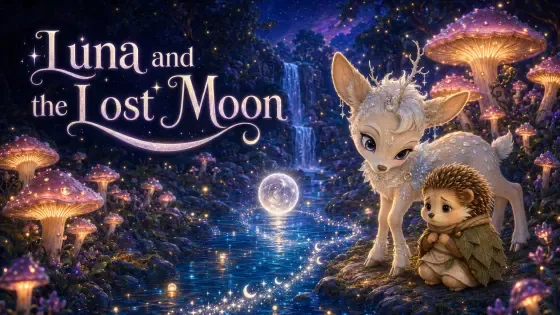
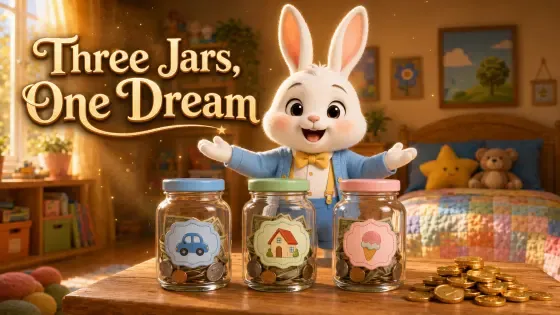
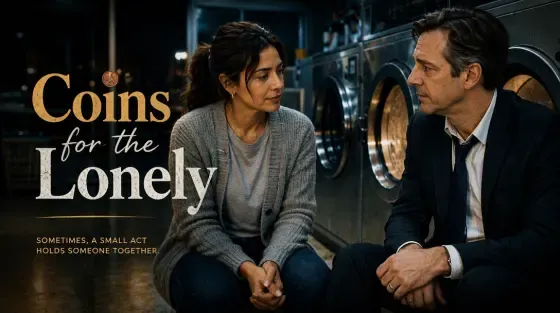
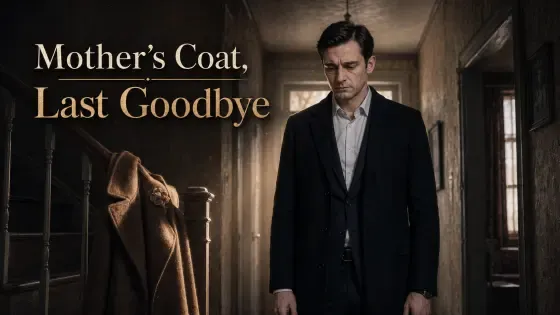
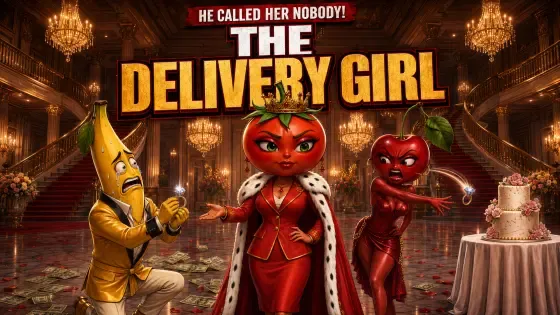

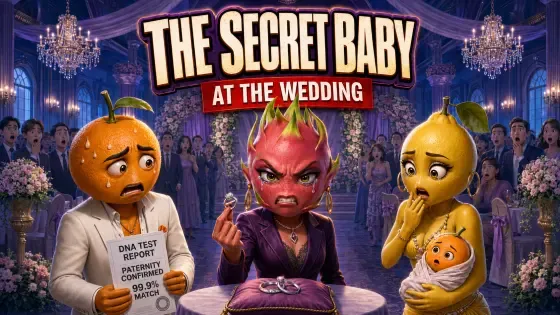







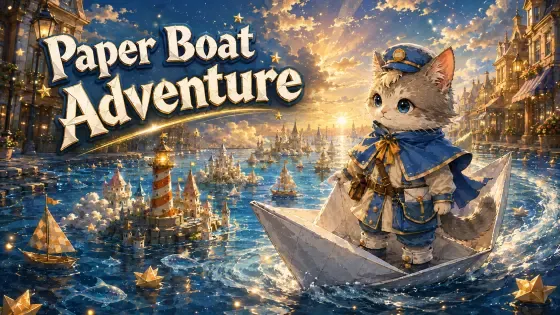
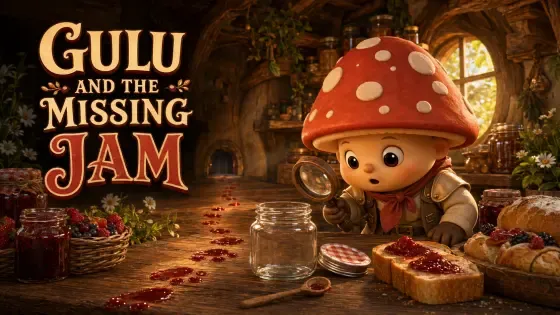
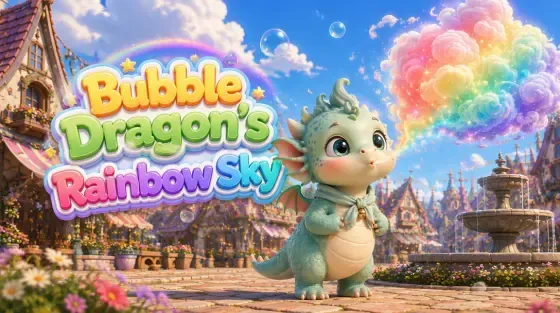
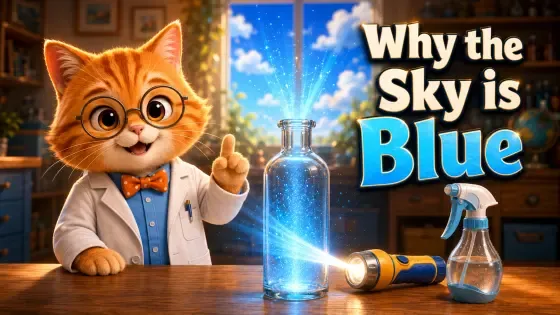
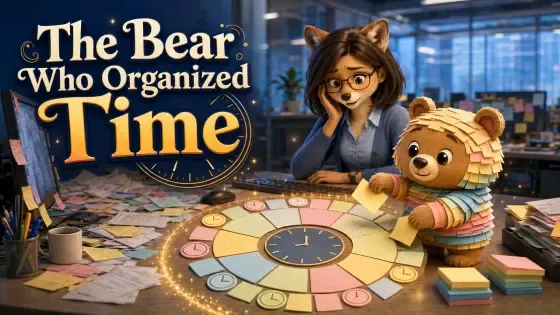

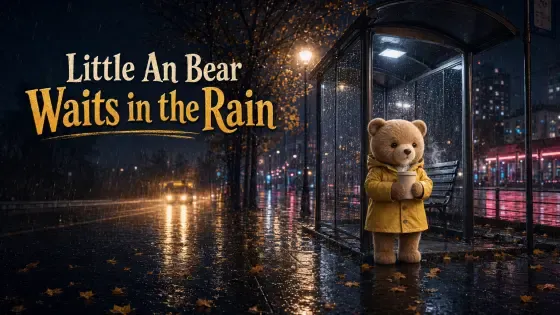
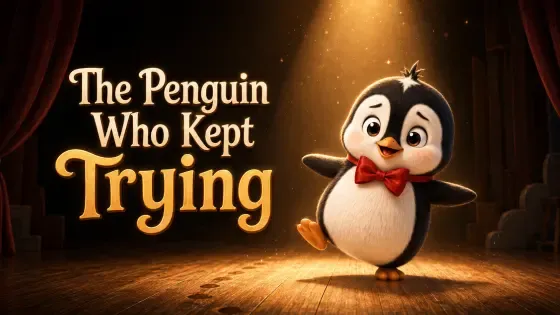



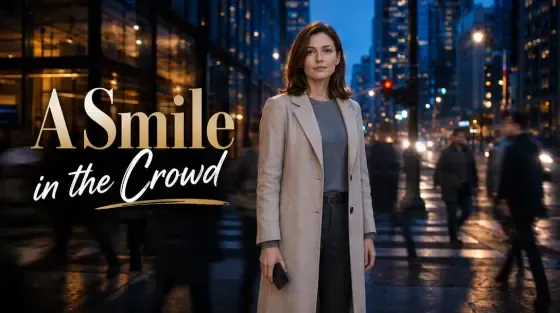

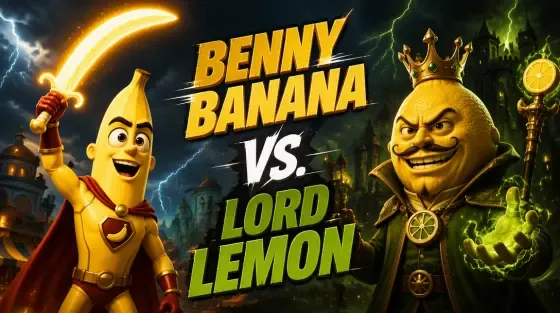
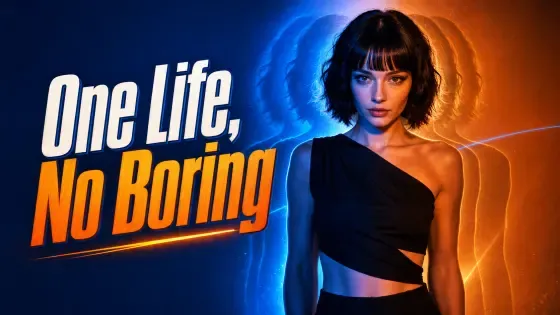
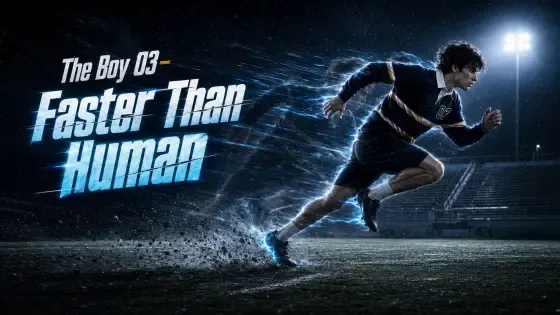
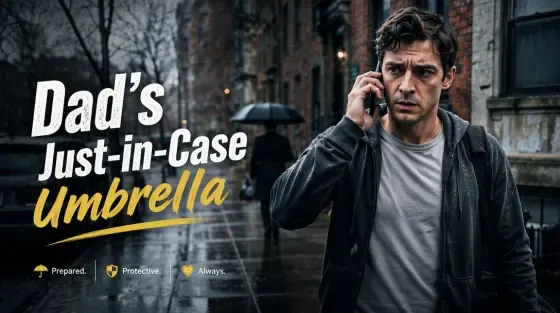

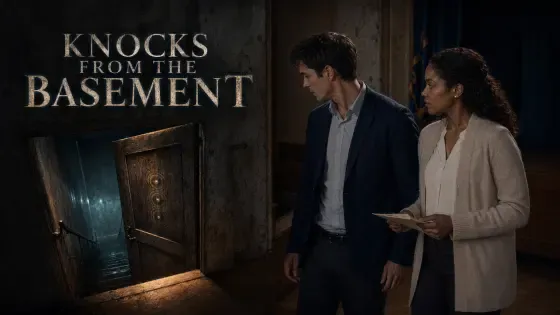
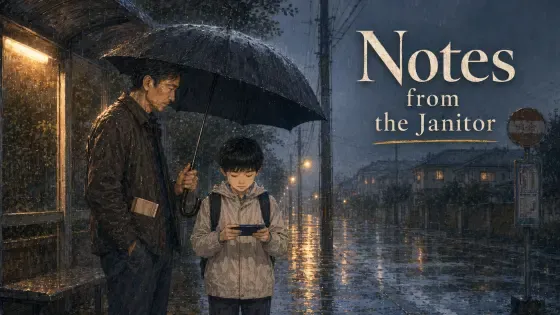
An AI story video generator helps turn a written idea or script into a sequence of scenes that can become video. On EaseGen, you first develop an editable script and storyboard, with shots, characters, locations, and timing you can inspect before making any media.
The story plan guides visual references and individual video clips. It does not turn one prompt into a finished, narrated movie. That separation lets you change a weak scene or shot before spending credits on its visuals.
Use the story workspace when the order of events matters: a character enters a place, makes a choice, and the next scene shows the consequence. If you already know exactly what one short clip should show, the AI Video Generator is the more direct starting point. A storyboard is useful when several clips need a shared sequence, even though you still make and review those clips separately.
Enter a story idea or paste a complete script. EaseGen detects the type of text and routes it to the right starting step. Read the resulting script before moving on: check who wants what, why each scene follows the last, and whether the ending resolves the setup. The source text can be up to 20,000 characters.
Choose a target length of 30, 60, 90, 120, 180, or 300 seconds for the story plan. Then inspect the scene order and the time assigned to each shot. You can edit what the camera shows, what happens, the framing, angle, movement, and any dialogue or sound cues. Shorten a shot that delays the next story beat, or give an important action enough time to read clearly.
The reference area separates characters, scenes, and key props. Create images for elements that return across shots or whose appearance matters to the story. Check a character's clothing or a location's details before using the image to guide later clips. A reference is a visual guide, not a promise that every generated frame will match it exactly.
Write a short idea or paste a complete script. Choose the input type and a target story length before you start.
Shape the script, then review the proposed scenes and shots. Edit characters, locations, actions, and timing before accepting the plan.
Add reference images for the characters, places, and props that need a consistent look. Check each image before using it in a video clip.
Open a planned shot in the video generator or import the clip plan into Canvas. Generate the clips you need, review the results, and continue developing the story there.
Before you make video, read the storyboard from start to finish without filling in missing actions in your head. If a character suddenly changes location or an important object appears without an introduction, revise the relevant shot. Check dialogue against the time available, and look for shots that repeat the same information. This pass is easier to make in text than after you have paid for several clips.
When the plan is ready, you can open an individual planned clip in the video generator, or import the clip plan into Canvas to continue working across clips. Review each generated result against its intended action and references before moving to the next one. The plan gives you a starting sequence; choosing clips worth keeping and finishing the edit remain separate production work.
EaseGen AI Story works best when a story needs several connected shots, rather than one isolated video clip.
Map the opening, turning point, and ending of a short narrative before creating clips for each beat. For a 30-second plan, choose only the moments needed to understand the change. A longer target can leave room for a reaction or a second location, but the extra time still needs a purpose.
Keep the character and setting descriptions together while planning a conversation or a sequence of actions. Mark where a person enters, where they look, and which shot carries a line of dialogue. Build a character reference if their appearance needs to guide multiple clips, then check continuity in the actual results.
Break a written explanation into scenes and decide what each shot should show before moving into video production. Use the storyboard to separate a claim, a visual demonstration, and a closing point. If a concept cannot be shown clearly in one shot, rewrite the visual direction before generating media.
Sign in to create, edit, and save text scripts and storyboards on EaseGen without spending credits. Creating reference images or video clips uses credits; the cost depends on your settings and appears before each media request. The first Generate action starts your story plan, not a finished film.
You can refine the wording, scene order, and shot details before requesting paid media. When you are ready to make an image or clip, check the displayed credit cost for that request and decide which references or shots are worth creating first. This page does not offer anonymous generation or a finished-video export. A plan can help you decide what to make, but it does not remove the need to review and assemble the resulting clips.

Create short AI videos from text or reference images on EaseGen. Compare models, choose video settings, and check the credit cost before you generate.

Put your character into a freestyle scene with one photo and a built-in performance reference.
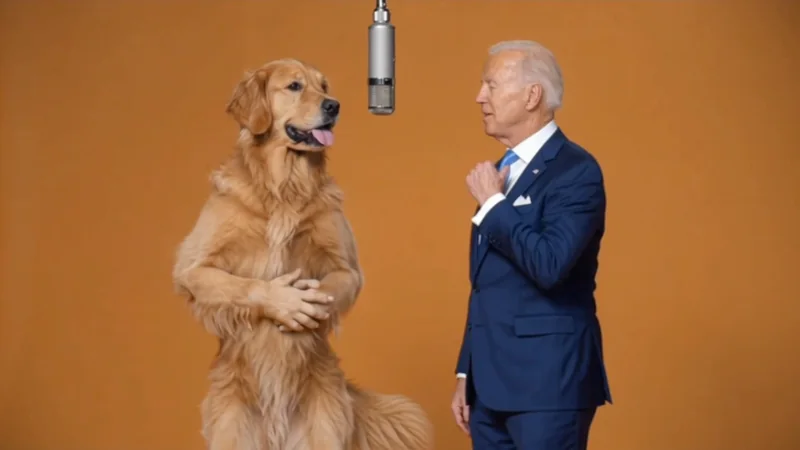
Start with a free-to-try Hotel Lobby AI template for two-person performance videos.
Turn your ideas into images and videos in one creative workspace.
Generate a storyboard to start editing shots.
Confirm Your Storyboard First.
Generate a storyboard to start editing shots.