Animating One Strong Image
Choose an Image to Video model when you already have a product image, character frame, or visual concept and want to add natural movement.
Create short videos from a text description or reference image. Choose a model and settings for your scene, then sign in and use credits to generate. The required credits are shown before you submit.
Describe a subject, action, setting, and mood in plain language. EaseGen turns that brief into a short video you can review, refine, and download without a watermark.
Use Text to Video when you are starting from a concept. Use Image to Video when you already have a product shot, character, sketch, or other visual reference you want to animate.
Write the scene you have in mind and describe the subject, movement, camera, and visual style in one clear prompt.
Upload a reference image and explain how it should move. This is useful for product reveals, character motion, and social clips.
Videos created in EaseGen are delivered without a watermark, so the result is ready to review or use in your next edit.
Compare supported video models in one workflow and pick the option that fits your scene, references, motion, or audio needs.
Aspect ratio, duration, resolution, audio, and reference options are shown for the model you select. Use those live options instead of guessing at limits.
Move from prompt or reference to model, settings, and generation in one focused page, with the current credit cost shown before you submit.
Start with a written concept, or upload a reference image when the look of the subject already matters.
Say what should move, how the camera should move, and what mood or style the clip should have.
Pick a supported model and use the aspect ratio, duration, resolution, and optional audio settings it makes available.
There is no single best model for every video. Begin with the type of input and control you need, then compare the live options shown for each model.
Choose an Image to Video model when you already have a product image, character frame, or visual concept and want to add natural movement.
Choose Text to Video when the scene exists mainly in your description and you want the model to create the subject, setting, and action together.
When your idea depends on multiple images, a reference video, or audio, choose a model whose panel lists those inputs as supported options.
Animate a product image into a launch teaser, detail shot, or short concept for a store or campaign.
Create vertical or square motion ideas for social posts, hooks, announcements, and short-form content.
Turn a written scene or visual reference into a quick moving draft before you plan a longer production.
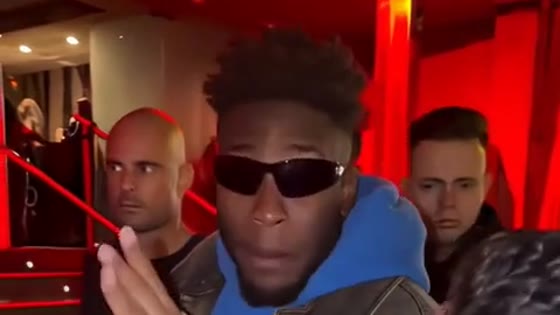
Make a freestyle performance clip for social posts with one photo and a built-in reference.
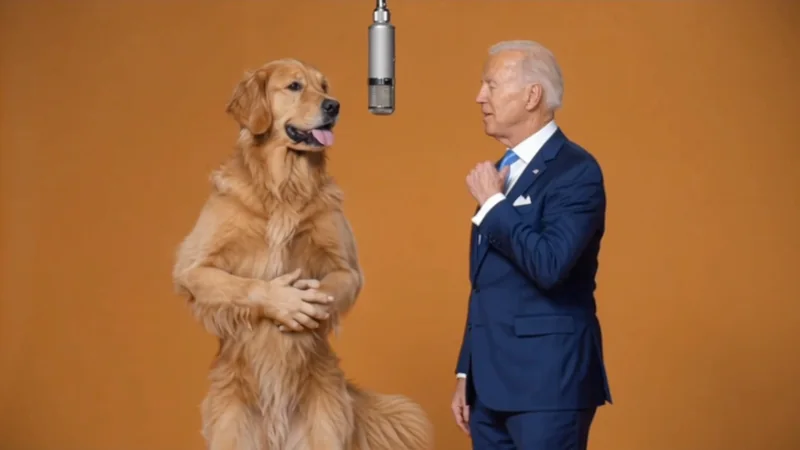
Make a two-person performance clip for social posts with the Hotel Lobby AI template.
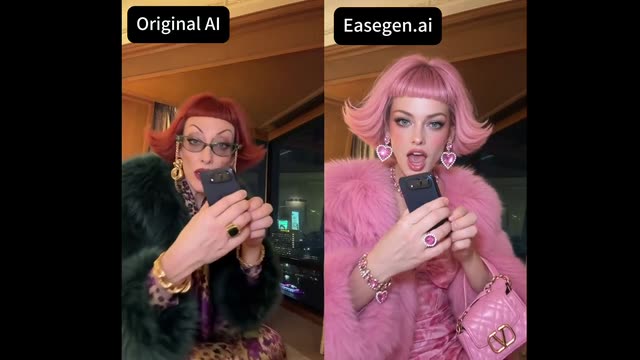
Make a 15-second iPhone Kupi dance video from one photo with a built-in movement reference.
Turn your ideas into images and videos in one creative workspace.