1. Airbrushed, Waxy Skin
Default models flatten pores, fine vellus hair, and subtle tone shifts into a uniform mannequin sheen—especially when prompts ask for beauty or realism without physical skin cues.
Upload an AI picture and replace waxy skin, studio glare, and artificial polish with natural camera texture. Try one watermark-free image free with no sign-up (up to 20 credits per network), or sign in for 20 bonus credits.
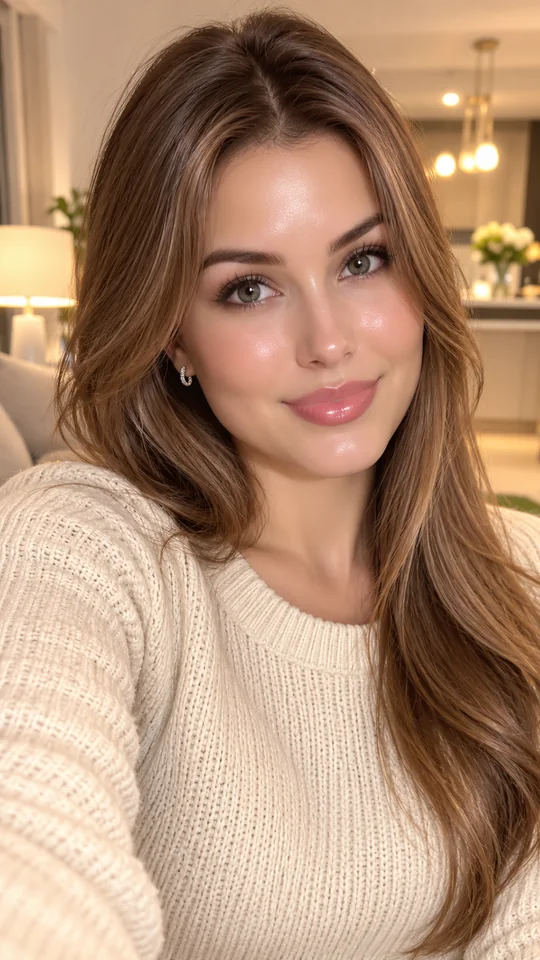
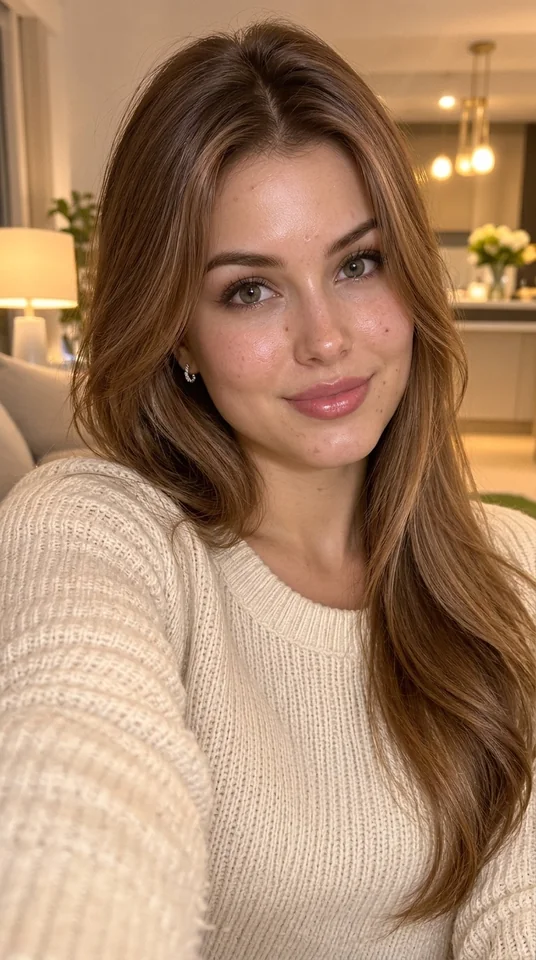
Casual iPhone Selfie Realism — Original AI image vs. Humanized output (Image to Image, 1K, 9:16).
Upload a PNG, JPG, or WebP image up to 30 MB, or switch to Text to Image to generate candid photos from scratch.
Casual iPhone Selfie Realism — Original AI image vs. Humanized output (Image to Image, 1K, 9:16).
EaseGen's AI Image Humanizer turns plastic, over-lit AI pictures into natural-looking photographs by re-rendering skin pores, fabric grain, and ambient camera light while preserving your subject's pose and identity. Run Image to Image at 1K, 2K, or 4K, test one preview without signing up, and export clean results.
Unlike metadata scrubbers that leave waxy skin and glowing edges untouched, visual humanizing replaces the obvious telltale pixels created by ChatGPT, Midjourney, or Flux. You can generate right away with the pre-filled instructions, customize any wording, or switch to Text to Image in the same workspace to create candid photos from scratch.
AI-generated images look fake because image models are trained to optimize toward glossy commercial polish—producing airbrushed skin, evenly balanced studio lighting, hyper-symmetrical faces, and zero optical imperfections. Real photographs look believable precisely because cameras capture uneven pores, messy light, and subtle lens flaws.
Default models flatten pores, fine vellus hair, and subtle tone shifts into a uniform mannequin sheen—especially when prompts ask for beauty or realism without physical skin cues.
Synthetic portraits often add glowing rim lights, zero-clipping highlights, and heavy orange-teal HDR contrast that rarely appear together in everyday natural-light shots.
Real lenses introduce shallow depth falloff, edge softness, subtle sensor noise, and slight motion blur. AI renders look sterile when every square millimeter appears mathematically sharp.
Generated subjects tend to stare dead-center with overly balanced posture and tidied backgrounds, triggering an instant uncanny-valley reaction in human viewers.
Replace airbrushed, mannequin-like surfaces with realistic skin pores, uneven tone variation, and authentic fabric weaves instead of slapping noisy filters on top.
Keep Auto aspect ratio selected and upload up to 10 reference images (max 30 MB each) so facial structure, pose, and framing stay intact.
Generate immediately with the built-in realism instructions, customize any wording, load an example prompt below, or switch to Text to Image.
Choose 1K, 2K, or 4K resolution in JPG or PNG with no brand watermark stamped on your finished photo.
Keep Image to Image selected and drop in the AI-generated portrait, product shot, or social graphic you want to look natural.
Use the built-in humanize prompt as-is, adjust camera or skin cues directly in the box, or load one of the prompt recipes below.
Leave aspect ratio on Auto to match your uploaded image, choose 1K, 2K, or 4K output, and select JPG for natural photo compression or PNG.
Click Humanize Image to render your result, inspect facial details and lighting against the original, and download your finished photograph.
Select Use Prompt to load any recipe directly into the Image to Image workspace above, or adapt the wording for Text to Image.
Re-render this headshot as an unretouched natural-light portrait shot on a 50mm lens at f/2.8. Keep the person's exact face, eyes, hairline, blazer, and office background unchanged. Replace smooth waxy skin with fine natural pores, slight under-eye texture, realistic stray hairs, and soft window light. Do not beautify or alter facial proportions.
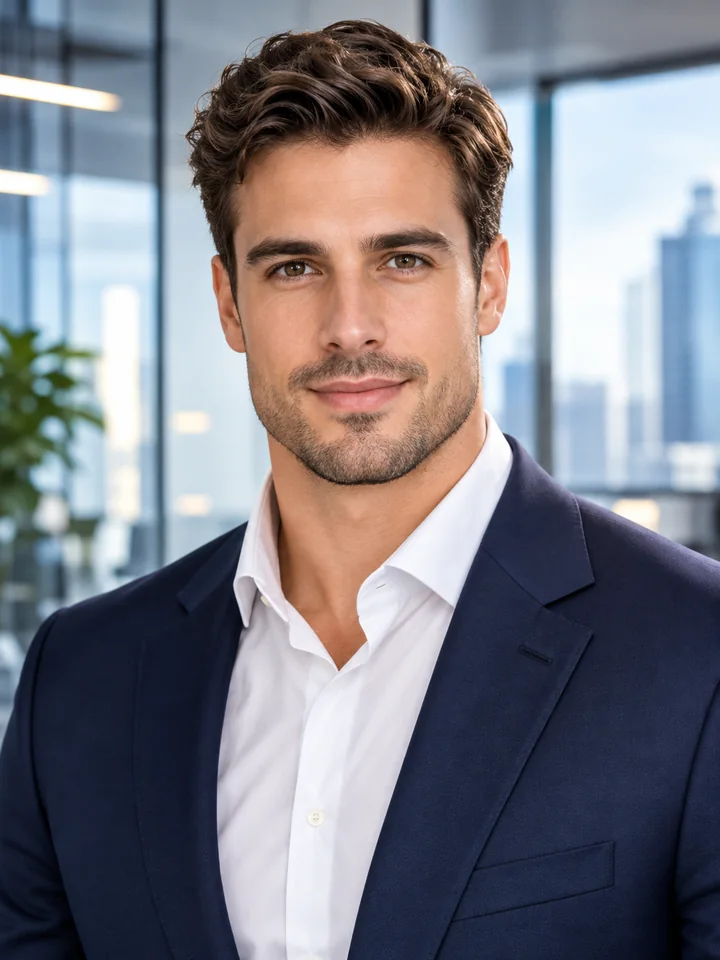
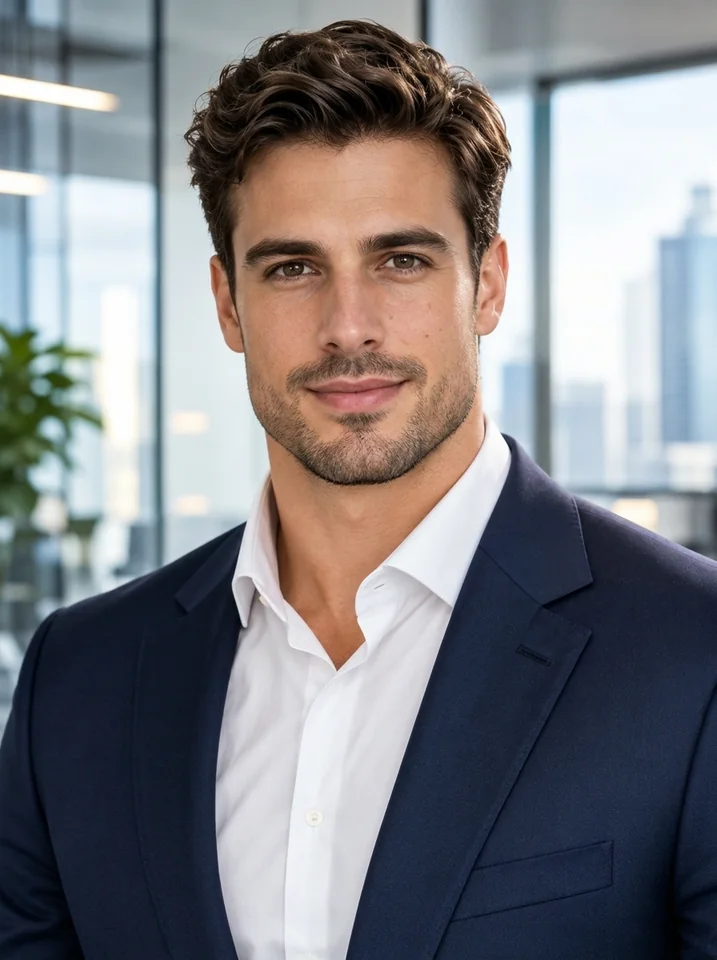
Convert this polished AI scene into an unposed 35mm candid street photograph in overcast afternoon light. Preserve the subject's identity, outfit, and surroundings while removing orange-teal HDR grading, adding natural shadow roll-off, subtle motion in passing details, and fine film grain.
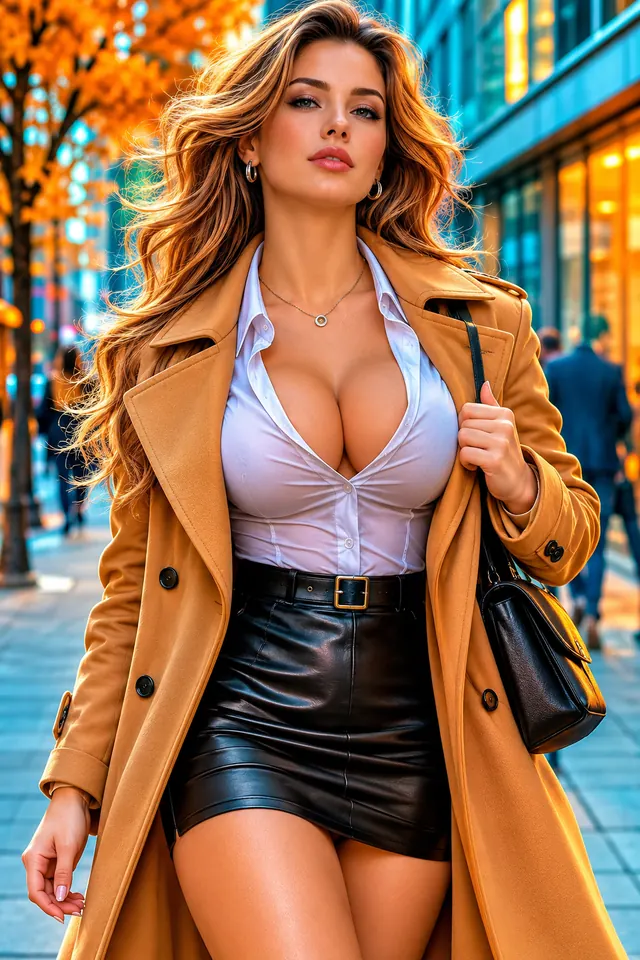
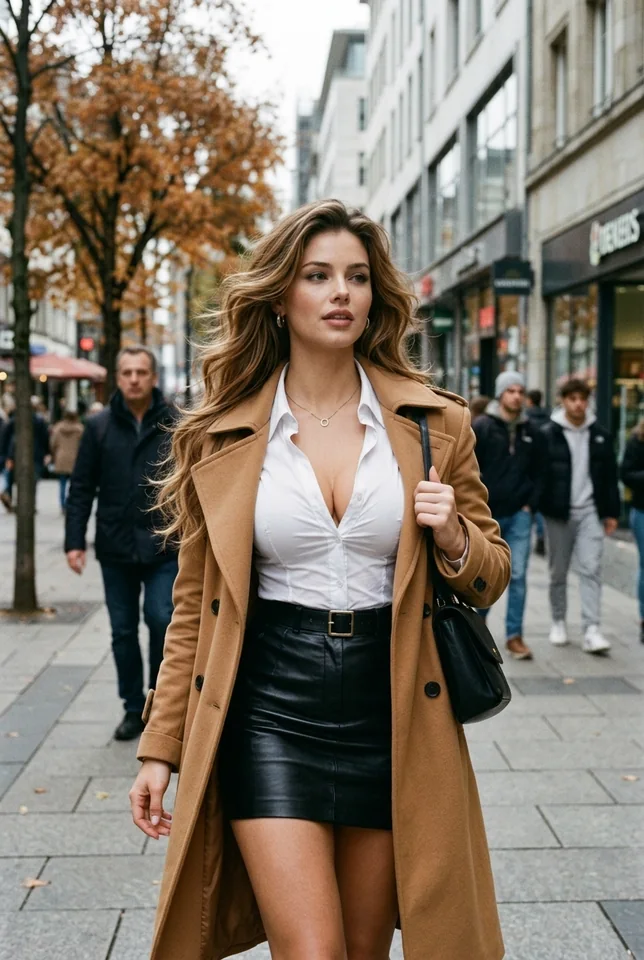
Transform this synthetic portrait into an unedited handheld iPhone photo taken in warm indoor apartment light. Keep the same person, pose, and room, but add everyday smartphone white balance, natural skin imperfections, subtle lens softness near the edges, and realistic fabric creases.
Turn this glossy AI product-in-hand render into a genuine creator snapshot beside a sunlit bathroom mirror. Keep the bottle shape, label text, and hand pose faithful while adding natural finger knuckles, realistic matte plastic reflections, and soft ambient room shadows.
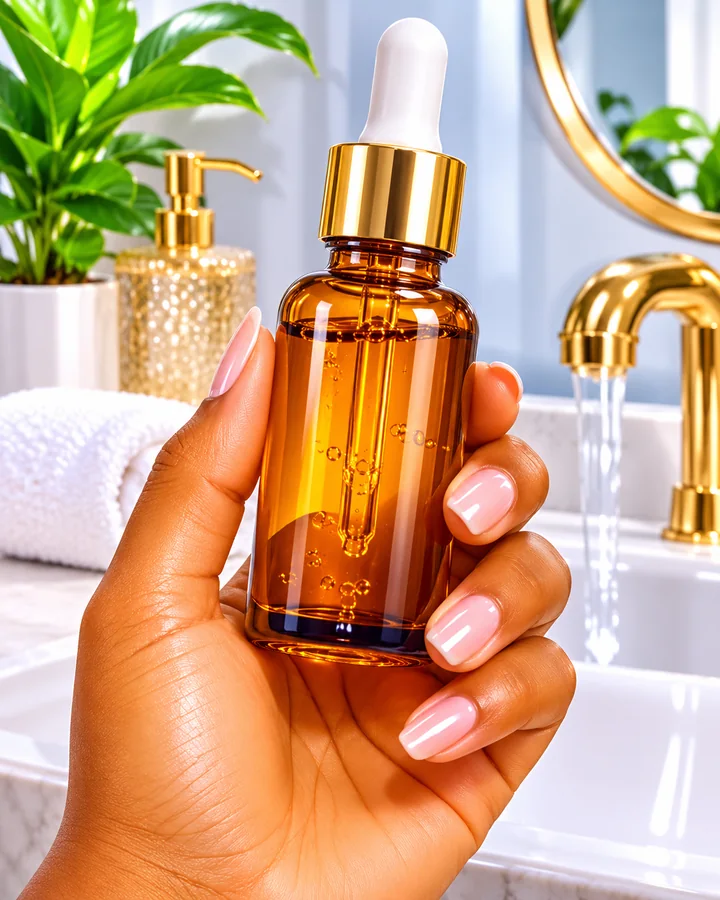
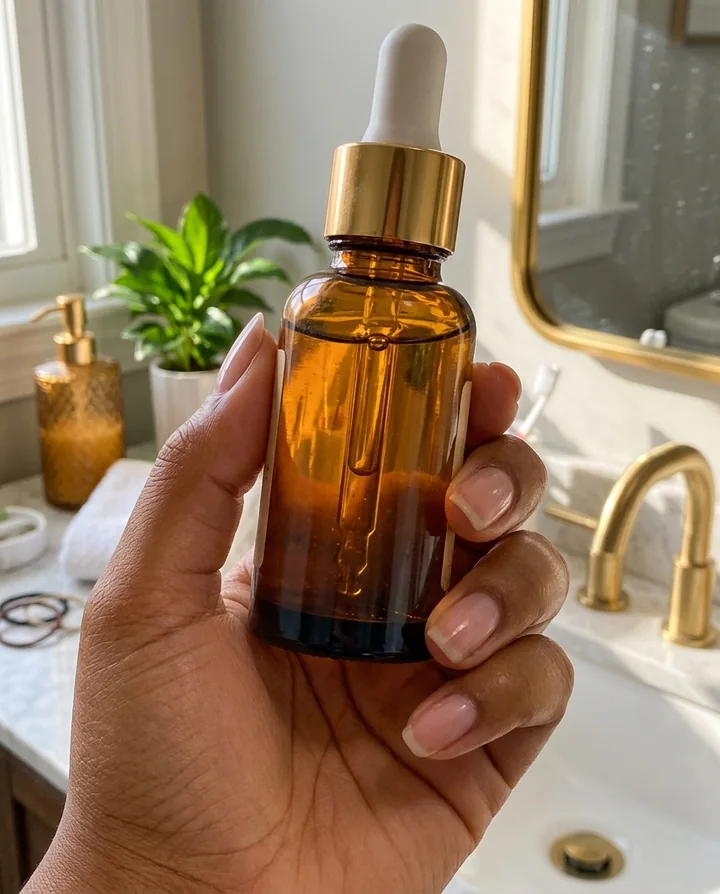
Community testing across thousands of creator prompts shows that negative word lists and vague realism buzzwords backfire. Use specific camera and skin-physics instructions instead.
Weak
Make this photo hyper-realistic, 8K, ultra-detailed, cinematic studio lighting.
Better
Unedited 35mm candid photo in overcast daylight, uneven natural shadow falloff, subtle lens softness, true-to-life muted color.
Weak
No plastic skin, no waxy face, no airbrushing, no CGI, no uncanny valley.
Better
Natural skin pore variation across cheeks and forehead, subtle tone unevenness, fine stray hairs, matte skin reflection without studio gloss.
Weak
Fix the face in this photo so she looks like a real human person.
Better
Keep facial bone structure, eyes, nose, lips, age, and expression identical to the uploaded image; do not beautify, slim, or reshape the face.
If your first pass still feels synthetic or drifts too far from the original photo, adjust one of these three settings.
Heavy macro pore prompts look artificial when social platforms compress your upload. Load the Casual iPhone Selfie Realism prompt below and export in JPG rather than pushing extreme skin detail.
Outputs from conversational image tools often carry flat orange-teal glow or subtle grid patterns. Run one pass at 2K with the 35mm street daylight instructions from the examples below to rebalance shadow roll-off and skin tone.
Vague instructions give the model too much freedom to re-invent features. Keep aspect ratio on Auto, describe only lighting and surface texture changes, and keep the identity-lock sentence intact.
Checked against public pricing and tool workflows on 2026-11-18. Choose based on whether you need visible photo realism or file-metadata edits.
Turn overly smoothed AI headshots into believable portrait photography with natural pores and soft office daylight before uploading to professional profiles.
Strip the artificial render sheen from lifestyle and product-in-hand shots so social ads feel like genuine customer photos.
Replace heavy studio rim lighting and uncanny symmetry with casual iPhone snapshot framing that fits everyday feeds.
Bring finished generations from external tools into Image to Image to tone down orange-teal saturation and plastic skin without rebuilding the scene.
Unify synthetic concept frames under consistent 35mm daylight and film grain so multi-shot client decks feel cohesive.
Switch the workspace to Text to Image and pair candid smartphone or DSLR cues with your subject description from the very first generation.
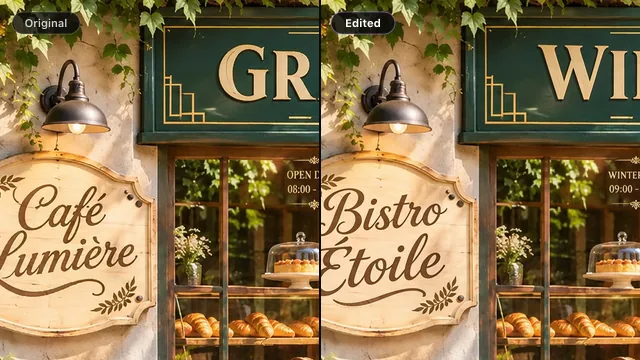
Replace or fix words inside photos, posters, and product labels while matching the original font.
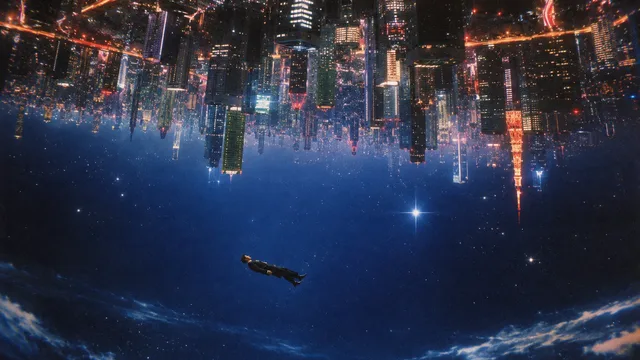
Create AI images online for free with no sign up from text prompts or reference images. Make product visuals, posters, ads, thumbnails, and social graphics with EaseGen.
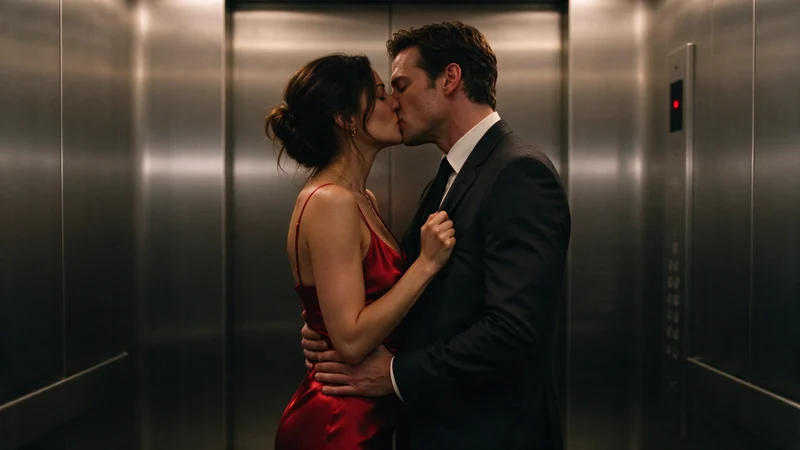
Create bold portraits, daring fashion, and dark fantasy with almost no creative restrictions.
Turn your ideas into images and videos in one creative workspace.